> For the complete documentation index, see [llms.txt](https://docs.auterion.com/llms.txt). Markdown versions of documentation pages are available by appending `.md` to page URLs; this page is available as [Markdown](https://docs.auterion.com/vehicle-operation/auterion-mission-control/useful-resources/situational-awareness/atak-communications-setup.md).
# ATAK Communications Setup
{% hint style="info" %}
**Premium Feature**
The ability to connect Auterion Mission Control with ATAK is a premium feature.\
Please contact Auterion sales for more information on how to get access.
{% endhint %}
This guide explains how to establish communication between Auterion Mission Control (AMC) and the Android Team Awareness Kit (ATAK) to share real-time situational awareness information. By following these steps, you can broadcast vehicle positions and markers from AMC to ATAK, and receive markers from ATAK users in AMC.
### Network Configuration
For AMC and ATAK to communicate, both devices must be connected to the same network (e.g., Wi-Fi, Ethernet). While not required, using static IP addresses is recommended for a stable and reliable connection.
> **Note:** The process for setting a static IP varies by device and operating system. Please refer to your device's documentation for instructions.
### Communication Diagram
The diagram below illustrates the data flow between AMC and ATAK. AMC sends messages to a specific port on the ATAK device, and ATAK sends messages to a specific port on the AMC device. The IP addresses and ports must be configured correctly on both ends.
```mermaid
graph TD
subgraph "Network"
AMC[AMC Device IP: IP_OF_AMC]
ATAK[ATAK Device IP: IP_OF_ATAK]
end
AMC -- "AMC Data Sends to IP_OF_ATAK:4242" --> ATAK
ATAK -- "ATAK Data Sends to IP_OF_AMC:8089" --> AMC
style AMC fill:#C70077,color:#fff,stroke:#333,stroke-width:2px
style ATAK fill:#3F51B5,color:#fff,stroke:#333,stroke-width:2px
```
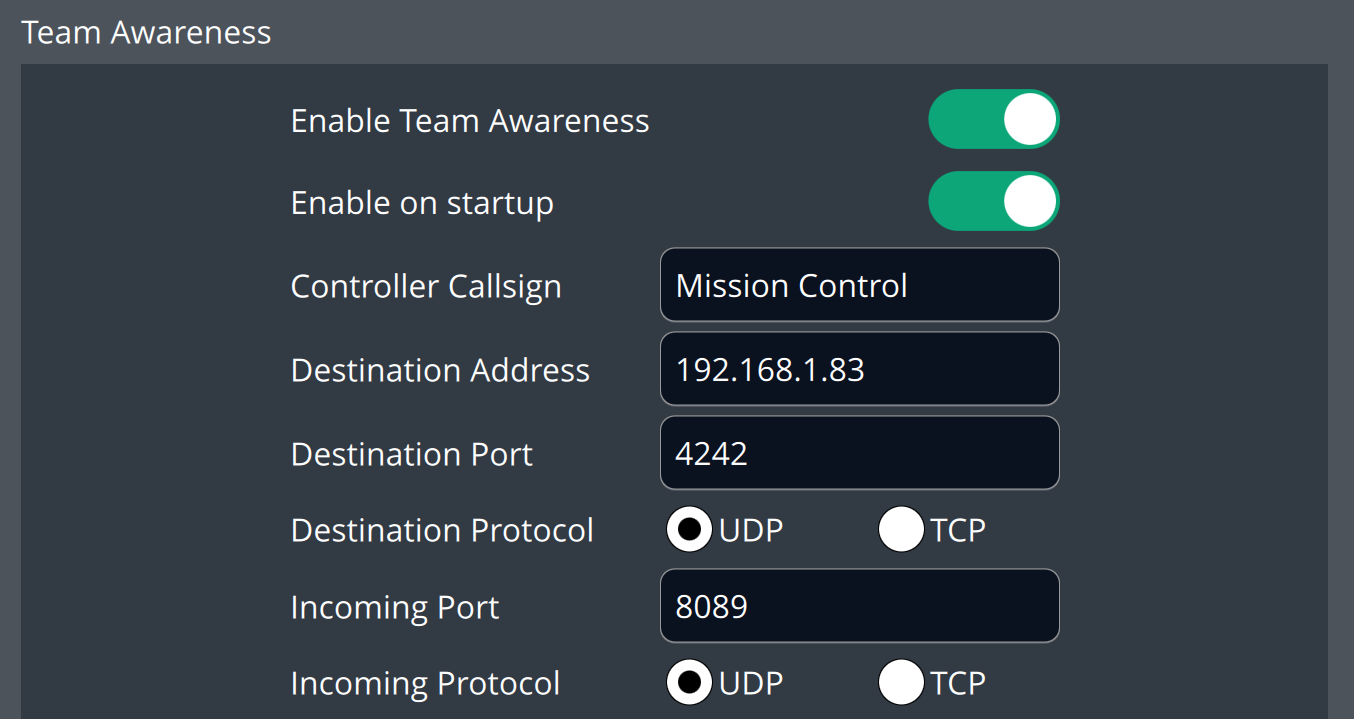
### AMC Configuration
Follow these steps to configure the settings in Auterion Mission Control.
1. Navigate to **Settings > General**.
2. Scroll down to the **Team Awareness** section. This section is only visible when connected to a vehicle with the premium Team Awareness feature enabled.
3. Enable **Enable Team Awareness** and **Enable on startup**.
4. Set **Destination Address** to the IP address of the device running ATAK.
5. Set **Destination Port** to `4242`.
6. Set **Destination Protocol** to **UDP**.
7. Set **Incoming Port** to `8089`.
8. Set **Incoming Protocol** to **UDP**.
AMC settings for configuring ATAK connection
### ATAK Configuration
Follow these steps to configure the network settings in ATAK.
#### Configure Incoming Connection (from AMC)
1. Tap the **three-line icon** menu button in the top right and select **Settings**.
2. In the pop-up, choose **Network Preferences** (may be hidden under **Show All Preferences** depending on ATAK version).
3. Select **Network Connection Preferences**.
4. Under **Input/Output Management**, tap **Manage Inputs**.
5. Tap the **pencil icon** to edit the default connection.
6. Set **Address** to `0.0.0.0`.
7. Check **Advanced Options**.
8. Set **Input Protocol** to **UDP**.
9. Set **Server Port** to `4242`.
10. Tap **Confirm** to save the changes.
11. Ensure the checkbox next to the connection is checked to enable it.
#### Configure Output Connection (to AMC)
1. Go back to **Input/Output Management** and tap **Manage Outputs**.
2. Tap the **three-dots menu** in the top right and select **Add**.
3. Set **Name** to `AMC`.
4. Set **Address** to the IP address of the device running AMC.
5. Check **Advanced Options**.
6. Set **Protocol** to **UDP**.
7. Set **Server Port** to `8089`.
8. Tap **Confirm** to save the changes.
9. Ensure the checkbox next to the newly created `AMC` output is checked to enable it.
After completing these steps, AMC and ATAK should be able to share data. You can test the connection by creating markers in AMC and verifying they appear in ATAK, and vice-versa (see [Adding Markers in AMC](/vehicle-operation/auterion-mission-control/useful-resources/situational-awareness/adding-markers.md) and [Adding Markers in ATAK](/vehicle-operation/auterion-mission-control/useful-resources/situational-awareness/adding-markers-in-atak.md)).
### Troubleshooting
If you have trouble getting AMC and ATAK to communicate, check the following common issues:
* **Subnets:** Make sure both devices have similar IP addresses (e.g., both starting with 192.168.1.x or 10.0.0.x) and the subnet mask is set to `255.255.255.0`. If they are on different subnets, they may not be able to reach each other.
* **VPNs:** Ensure neither device is connected to a VPN, as this can block communication.
* **Firewalls:** Try disabling the firewall on either device or the network, as it may be blocking the required ports (4242 and 8089).
* **Changing IP Addresses:** If you are not using static IPs, the IP address of a device can change (for example, after rebooting, reconnecting to Wi-Fi, or moving between networks). If this happens, you will need to update the settings in AMC and ATAK with the new IP address.