> For the complete documentation index, see [llms.txt](https://docs.auterion.com/llms.txt). Markdown versions of documentation pages are available by appending `.md` to page URLs; this page is available as [Markdown](https://docs.auterion.com/hardware-integration/skynode-s/skynode-s-led-status-indicator.md).
# Skynode S LED status indicator
There are two sets of Red, Green and Blue LEDs on Skynode S.
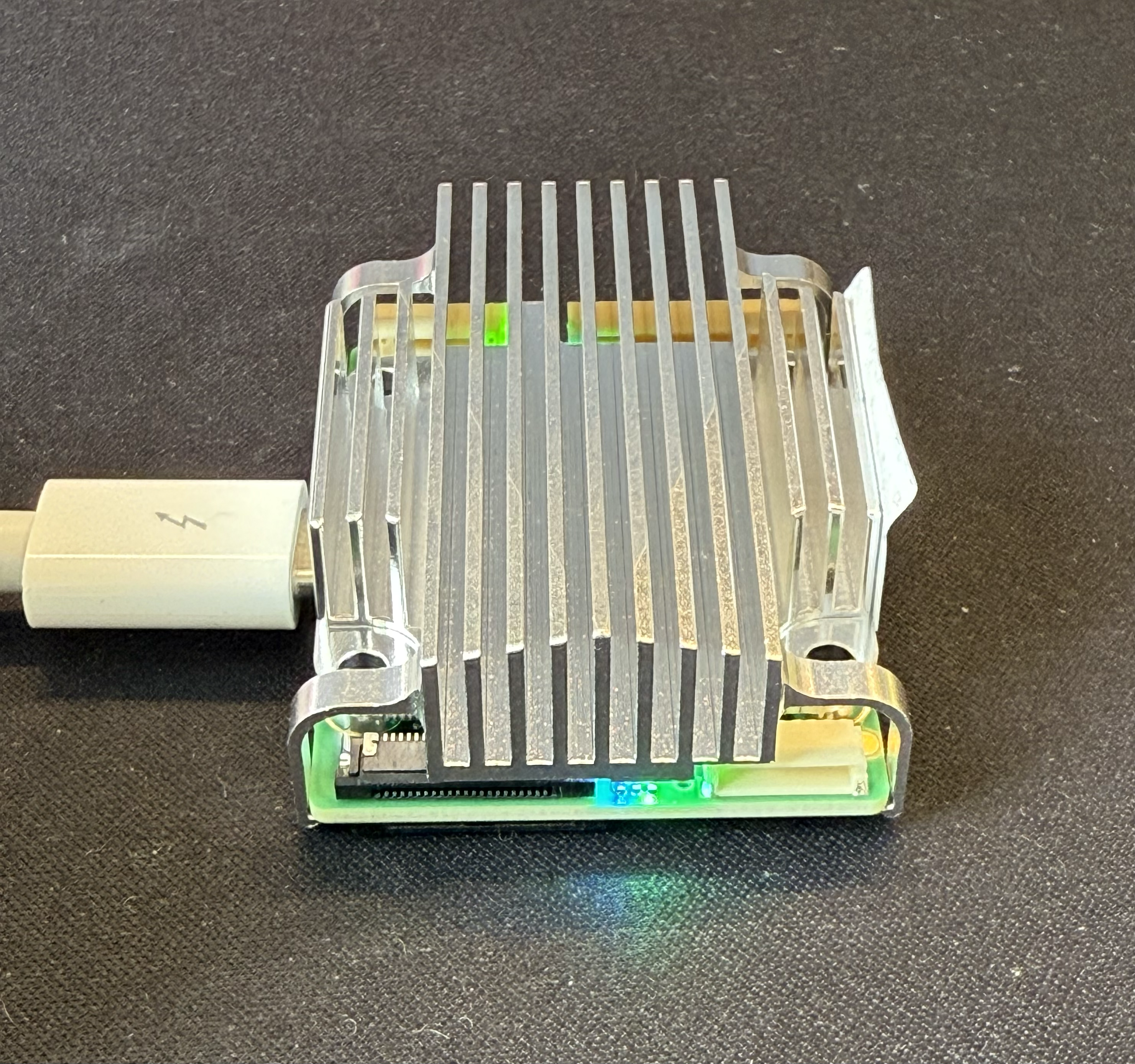
#### **The LEDs on the MIPI connectors side indicate the status of the companion computer.**
Skynode S MIPI connectors side
| LED | State | Meaning |
| ------- | -------- | ----------------------------------------------------------- |
| Blue | On | Flight controller communicating with the companion computer |
| Green | On | AuterionOS has finished booting. |
| All LED | Flashing | Device is thermal throttling. |
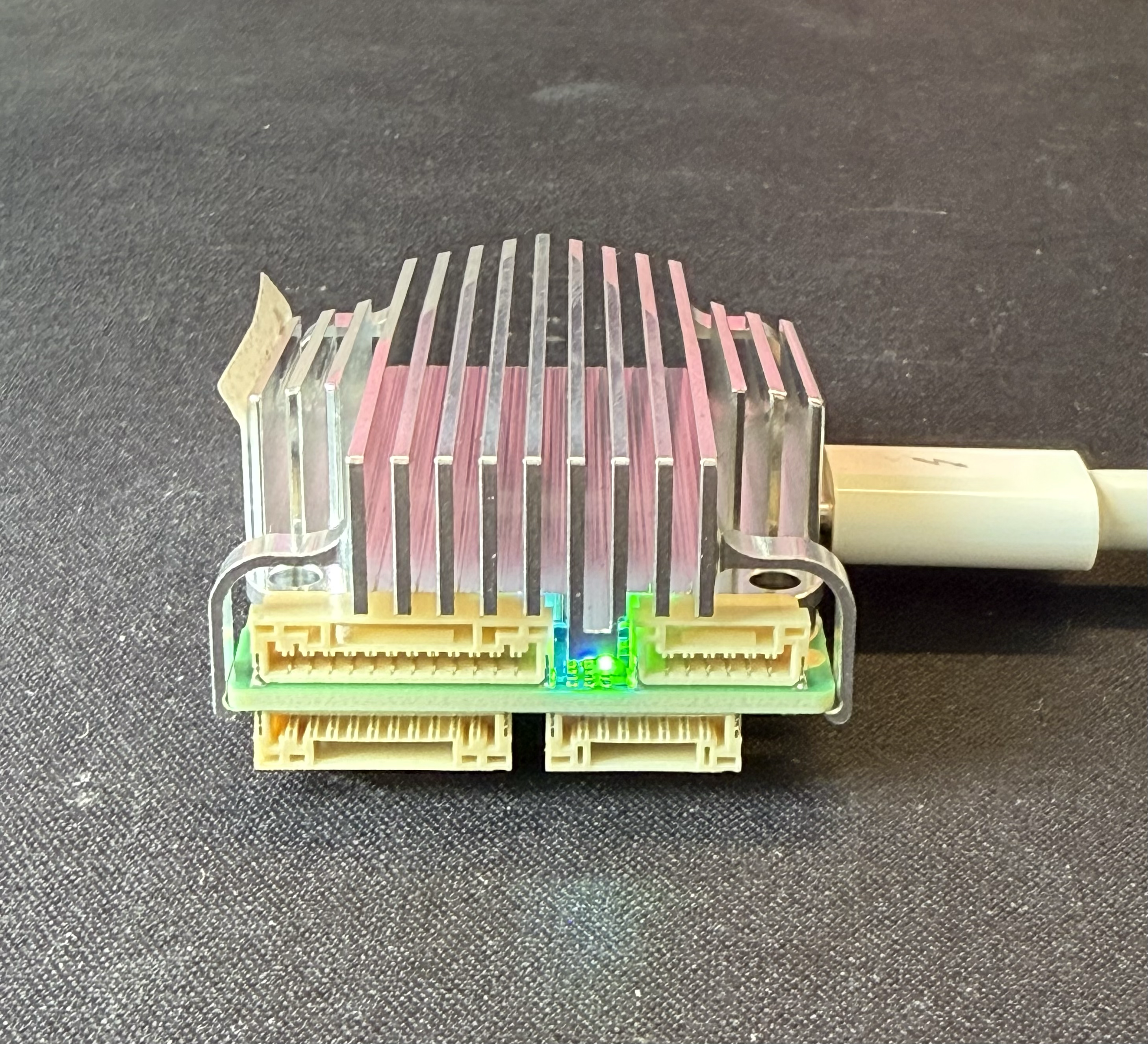
#### The LEDs on the other side indicate the status of the flight controller.
FMU side
| LED | State | Meaning |
| ----- | ------------------------------------------------ | -------------------------------------------------- |
| Green | On | Flight controller power is on. |
| Red | On (during boot) | FRAM mounting failed or a hard fault occurred. |
| Red | Blinking (after boot) | CPU or RAM overload detected. |
| Blue | Blinking (drone armed) | Failsafe mode activated. |
| Blue |
Not blinking (drone not armed)
| Error state; there is an issue with the Commander. |
| Blue |