# Plan UI Overview

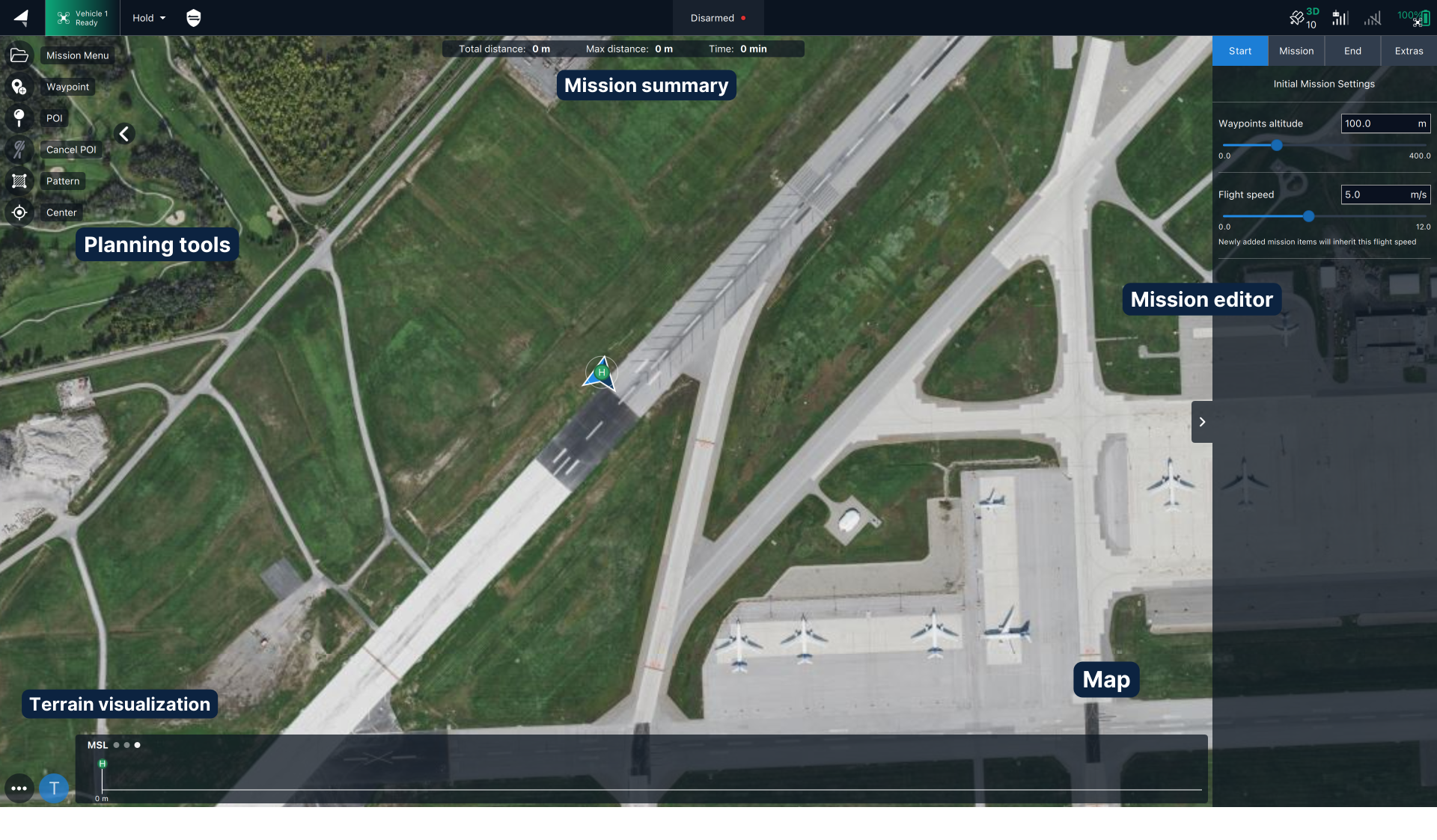
This section provides an overview of the planning user interface (in particular those parts that are common to all types of plans).

<figure><img src="https://3329189600-files.gitbook.io/~/files/v0/b/gitbook-x-prod.appspot.com/o/spaces%2FFW1Ge1p1f6WHyiYCb146%2Fuploads%2Fgit-blob-d5113464b5e7099f92a3ced1479e147c84e96c00%2FUntitled%20design.png?alt=media" alt=""><figcaption></figcaption></figure>

*The plan view is organized in the following sections:*

* [Planning tools](https://docs.auterion.com/vehicle-operation/auterion-mission-control/ui-breakdown/plan/plan-tools)
* [Mission Editor Tab](https://docs.auterion.com/vehicle-operation/auterion-mission-control/ui-breakdown/plan/mission-editor-tab)
* [Mission summary](https://docs.auterion.com/vehicle-operation/auterion-mission-control/ui-breakdown/plan/mission-summary)
* [Terrain visualization](https://github.com/Guscedav/DocsUnited/blob/main/operating-a-vehicle/auterion-mission-control/plan/plan-ui-overview/broken-reference/README.md)

## Interacting with the plan view

On touch screen devices, navigating the plan view is possible by using common gestures such as Tap, Pinch and Zoom.

**Zoom in and out**

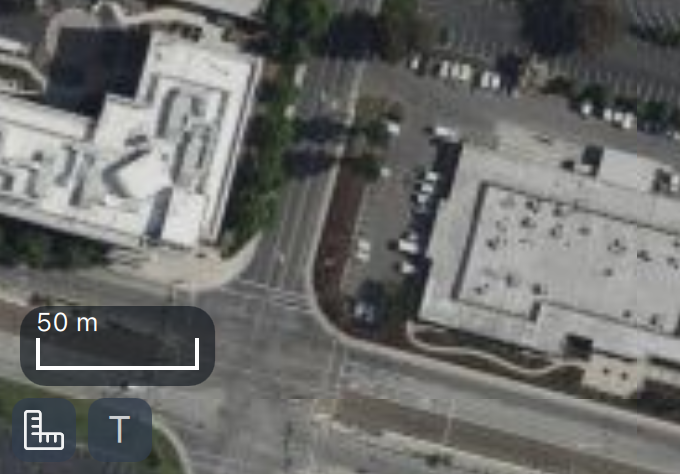
As in the fly view, the bottom left of the map includes a scale marker and on-screen buttons for zooming the map in/out.

<figure><img src="https://3329189600-files.gitbook.io/~/files/v0/b/gitbook-x-prod.appspot.com/o/spaces%2FFW1Ge1p1f6WHyiYCb146%2Fuploads%2Fgit-blob-44df3da24943217f6dbf3e13bca986ccb880ce6b%2FScreenshot%202023-10-06%20at%2016.32.32.png?alt=media" alt=""><figcaption></figcaption></figure>

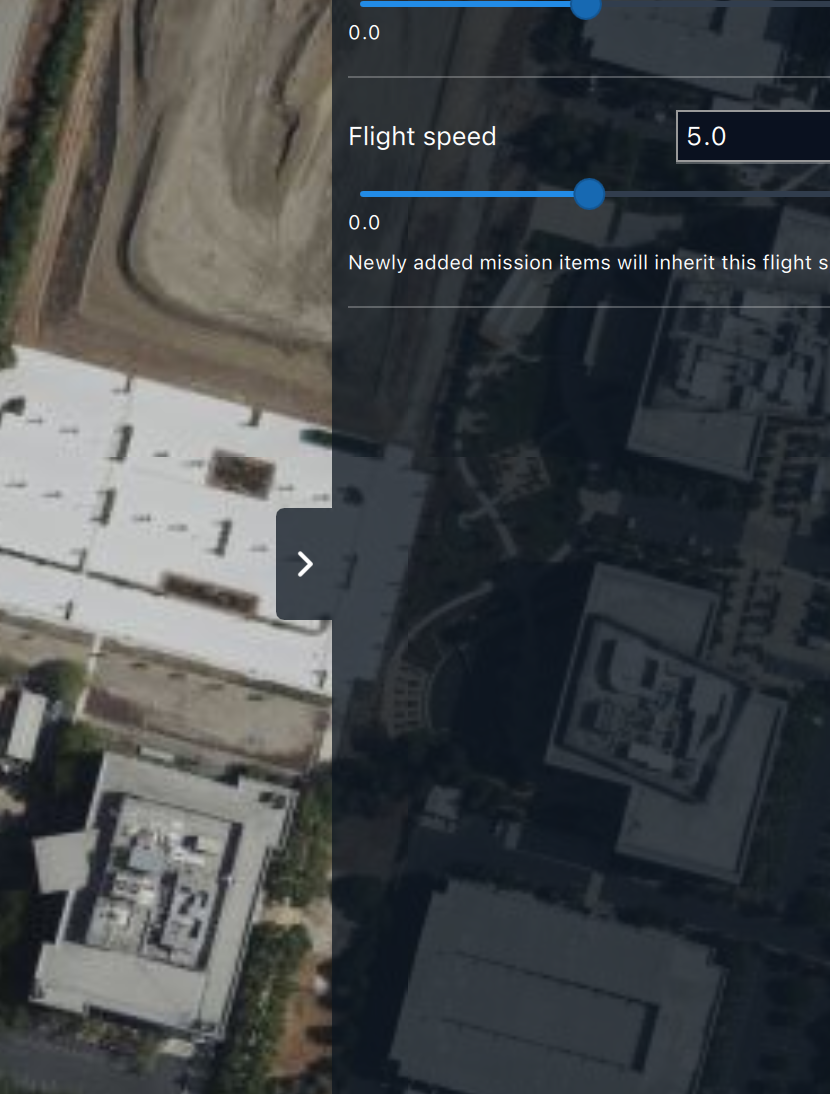
For GCSs with small screens, the map area in view can be increased by collapsing the Mission bar located on the left by tapping on the tiny arrow.

<figure><img src="https://3329189600-files.gitbook.io/~/files/v0/b/gitbook-x-prod.appspot.com/o/spaces%2FFW1Ge1p1f6WHyiYCb146%2Fuploads%2Fgit-blob-9b847309fb1bfebd1f56799e54effaa6b0893b44%2FScreenshot%202023-10-06%20at%2016.08.30.png?alt=media" alt="" width="375"><figcaption></figcaption></figure>

## Plan Tools - Sidebar

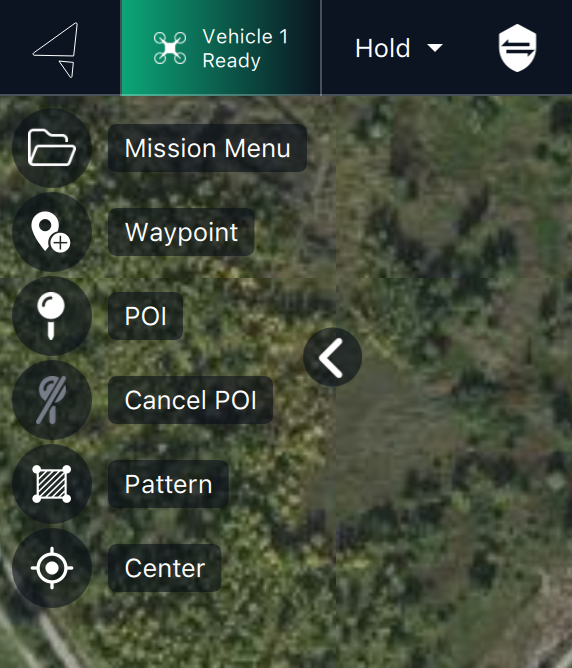
The [*Plan Tools*](https://docs.auterion.com/vehicle-operation/auterion-mission-control/ui-breakdown/plan/plan-tools) provides quick actions for working with plans, including adding waypoints, inserting survey/structure scan patterns, saving/loading/uploading/downloading plans etc. Some of the options are only displayed when working on a particular type of plan.

<figure><img src="https://3329189600-files.gitbook.io/~/files/v0/b/gitbook-x-prod.appspot.com/o/spaces%2FFW1Ge1p1f6WHyiYCb146%2Fuploads%2Fgit-blob-93988c96ad11e7a7f1da96ecb5e761e88e098b70%2FScreenshot%202024-03-28%20at%2013.52.55.png?alt=media" alt=""><figcaption><p>Planning tools</p></figcaption></figure>

Further details can be found in the [Plan Tools ](https://docs.auterion.com/vehicle-operation/auterion-mission-control/ui-breakdown/plan/plan-tools)section.

## Mission editor

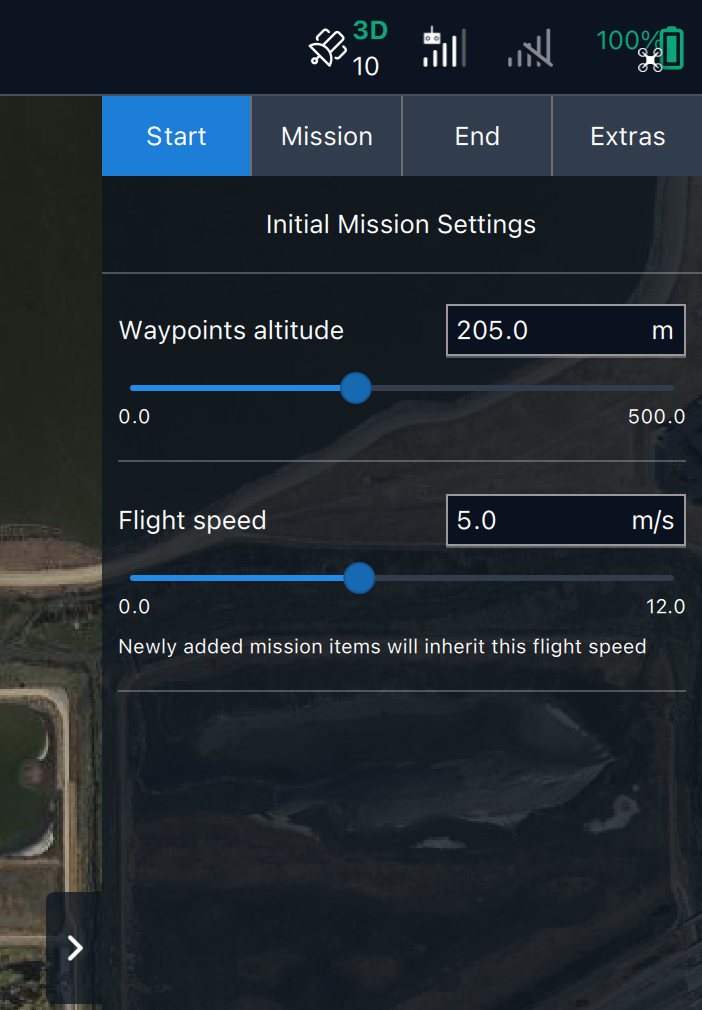
The [mission editor](https://docs.auterion.com/vehicle-operation/auterion-mission-control/ui-breakdown/plan/mission-editor-tab/mission-item-reference) on the right side allows the operator to further adjust mission settings such as speed, waypoints altitude and end of mission action.

<figure><img src="https://3329189600-files.gitbook.io/~/files/v0/b/gitbook-x-prod.appspot.com/o/spaces%2FFW1Ge1p1f6WHyiYCb146%2Fuploads%2Fgit-blob-8dd5e447b53b2dc654a0ab5467f5b830b0700f7a%2FScreenshot%202023-10-06%20at%2016.49.28.png?alt=media" alt=""><figcaption></figcaption></figure>

## Terrain visualization

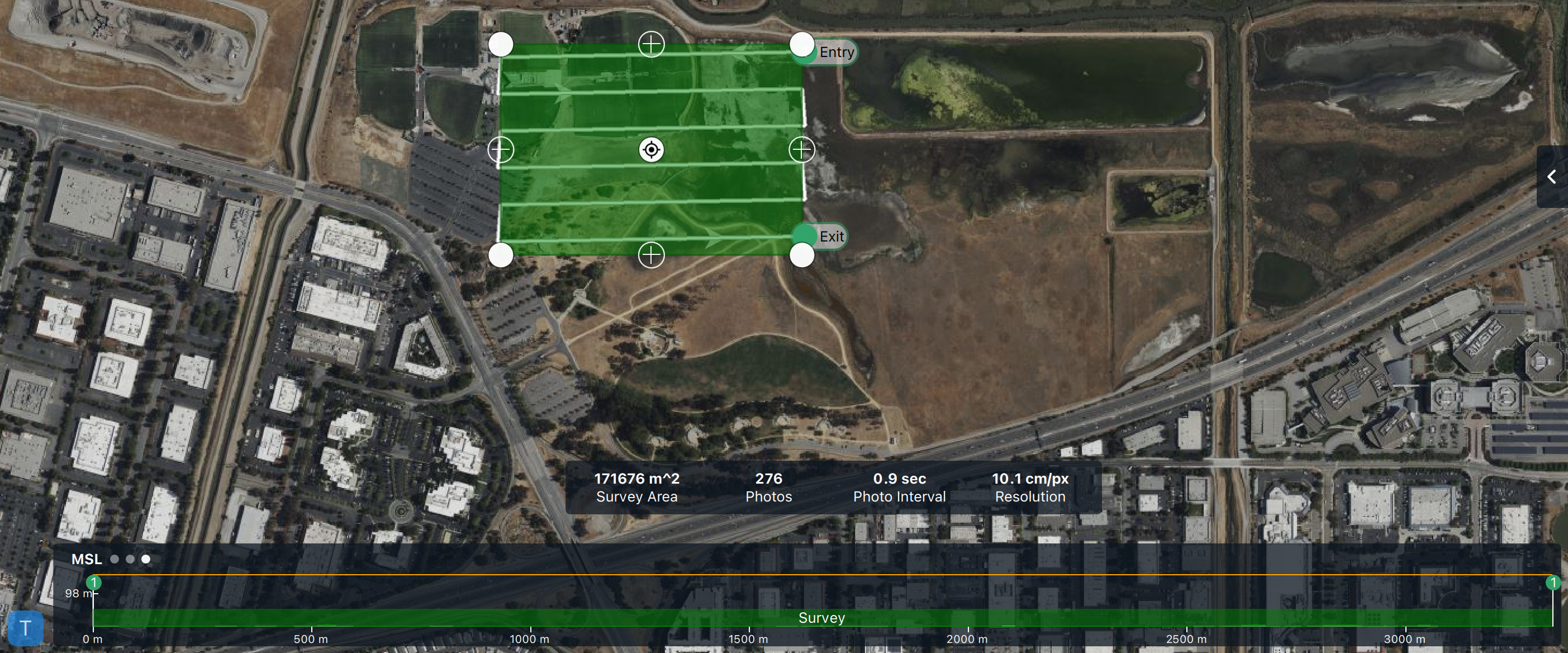
The [terrain visualization](#terrain-visualization) is used to verify that waypoints are all set above ground level.

This plot will show the terrain profile and verify that the mission is planned at the right altitude to avoid any collision.
<figure><img src="https://3329189600-files.gitbook.io/~/files/v0/b/gitbook-x-prod.appspot.com/o/spaces%2FFW1Ge1p1f6WHyiYCb146%2Fuploads%2Fgit-blob-68112c60272e8682d3a225d12ca975ebd21a55d0%2FScreenshot%202023-10-06%20at%2016.42.07.png?alt=media" alt=""><figcaption></figcaption></figure>


---

# Agent Instructions: Querying This Documentation

If you need additional information that is not directly available in this page, you can query the documentation dynamically by asking a question.

Perform an HTTP GET request on the current page URL with the `ask` query parameter:

```
GET https://docs.auterion.com/vehicle-operation/auterion-mission-control/ui-breakdown/plan/plan-ui-overview.md?ask=<question>
```

The question should be specific, self-contained, and written in natural language.
The response will contain a direct answer to the question and relevant excerpts and sources from the documentation.

Use this mechanism when the answer is not explicitly present in the current page, you need clarification or additional context, or you want to retrieve related documentation sections.