> For the complete documentation index, see [llms.txt](https://docs.auterion.com/llms.txt). Markdown versions of documentation pages are available by appending `.md` to page URLs; this page is available as [Markdown](https://docs.auterion.com/vehicle-operation/auterion-suite-fleet-management/fleet-management/assets.md).
# Assets
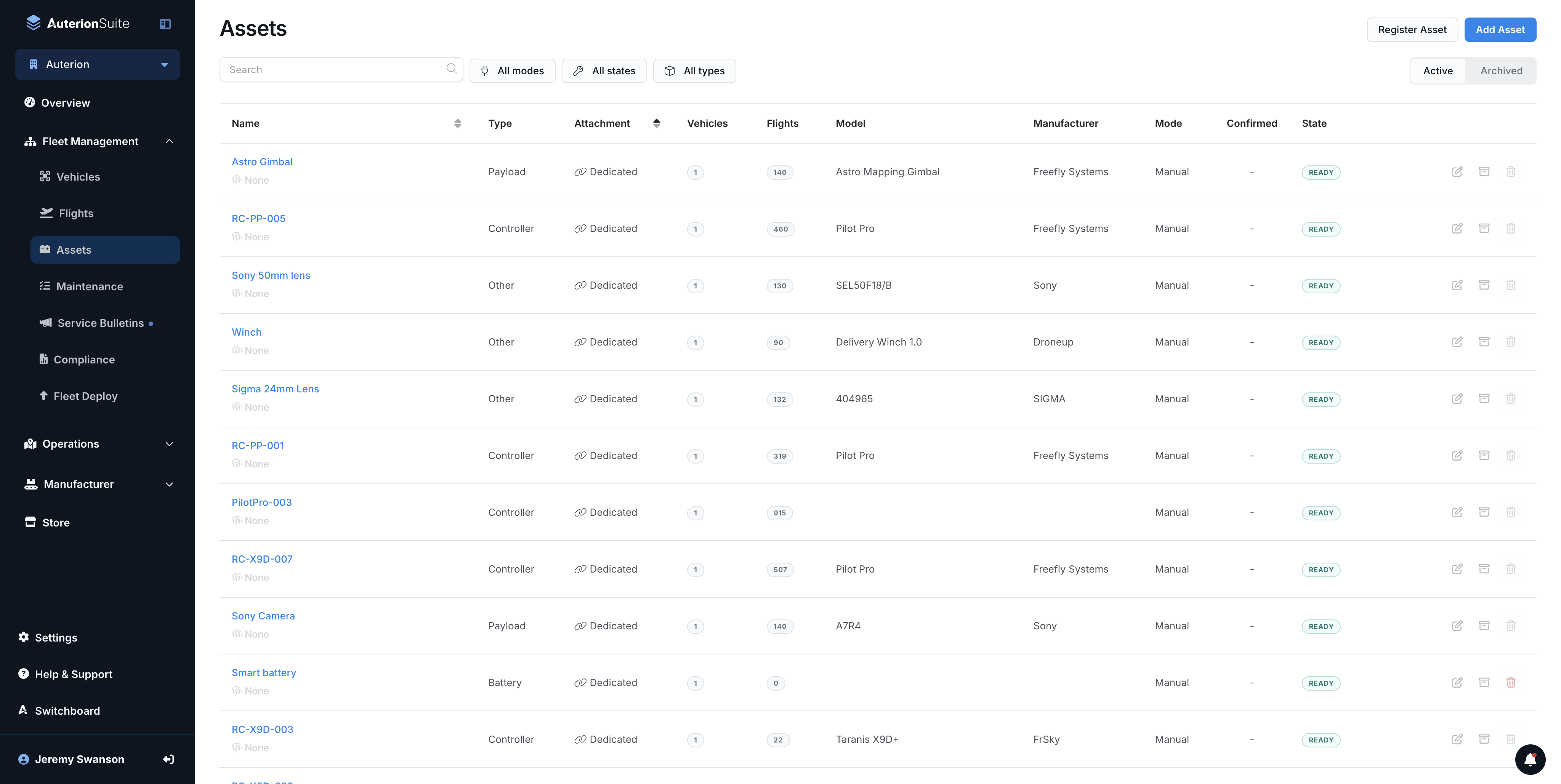
Asset Management lets you track all hardware associated with your fleet, including payloads, controllers, batteries, and SIM cards, whether added manually or created automatically by Auterion Suite.
## Overview
With Asset Management, you can manage all assets in your organization, whether they were automatically created by Suite (for example from a flight log upload) or manually added by a user.
With Asset Management, you can manage all assets in your organization, whether they were automatically created by Auterion Suite (for example from a flight log upload) or manually added by a user.
Vehicle SIM cards are also managed as assets in Auterion Suite, which can track SIM data usage and monitor progress toward the monthly data allowance.
### How assets are defined in Suite
In Auterion Suite, assets are defined by three properties: **type**, **assignment**, and **creation method**.
Asset types
When you create an asset, you select its **type** (for example payload, controller, battery, SIM card). The type controls how the asset is displayed and grouped in Suite.
How assets are assigned to vehicles
* **Dedicated to a vehicle**: The asset is linked to a single vehicle and will be automatically recorded on flights taken by that vehicle.
* **Shared between vehicles**: The asset can be assigned to multiple vehicles in your organization and will not be recorded unless assigned preflight.
How assets are created
* **Automatically created assets** are created by Suite and always dedicated to one vehicle (for example, a detected SIM card).
* **Manually created assets** are added by the user and can be set as either dedicated or shared, such as payloads or other equipment you want to track. In the next section we will see how to create these assets.
## Creating an Asset in Suite
To manually add an asset in Auterion Suite:
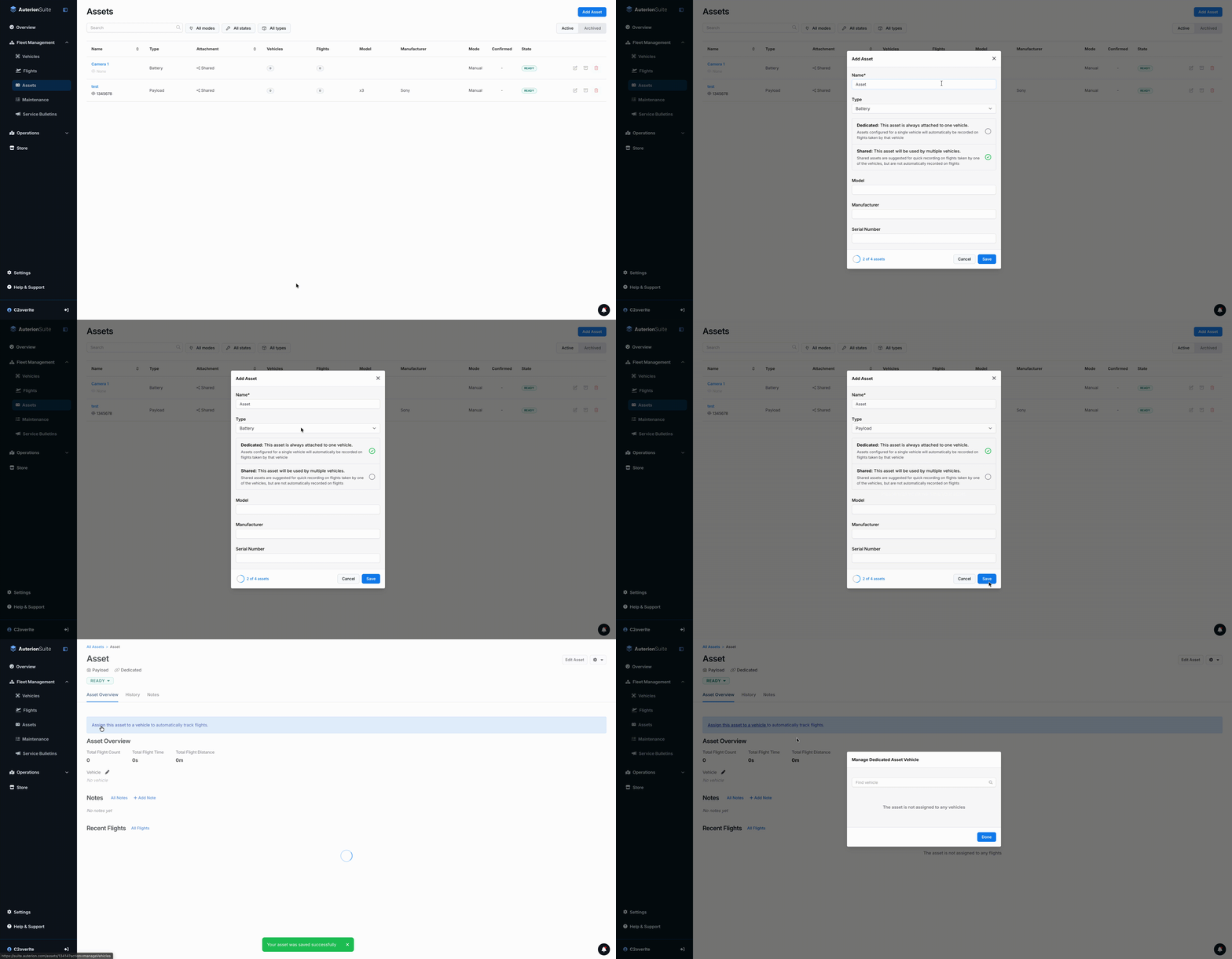
1. On the **Assets** page, select **Add Asset** in the top-right corner.
2. In the pop-up, enter a **name**, choose an **asset type**, and select whether the asset is **dedicated to a vehicle** or **shared**.
3. (Optional) For better tracking, add the **model**, **manufacturer**, and **serial number**.
4. Click **Save**.
#### Assigning assets after creation
* For **dedicated assets**, open the relevant **vehicle page**. You will be prompted to assign the dedicated asset to a vehicle.
* For **shared assets**, you can assign the asset to one or more vehicles from the **vehicle page**, as described in[#assigning-assets-to-vehicles](#assigning-assets-to-vehicles "mention").
## **Viewing and editing asset details**
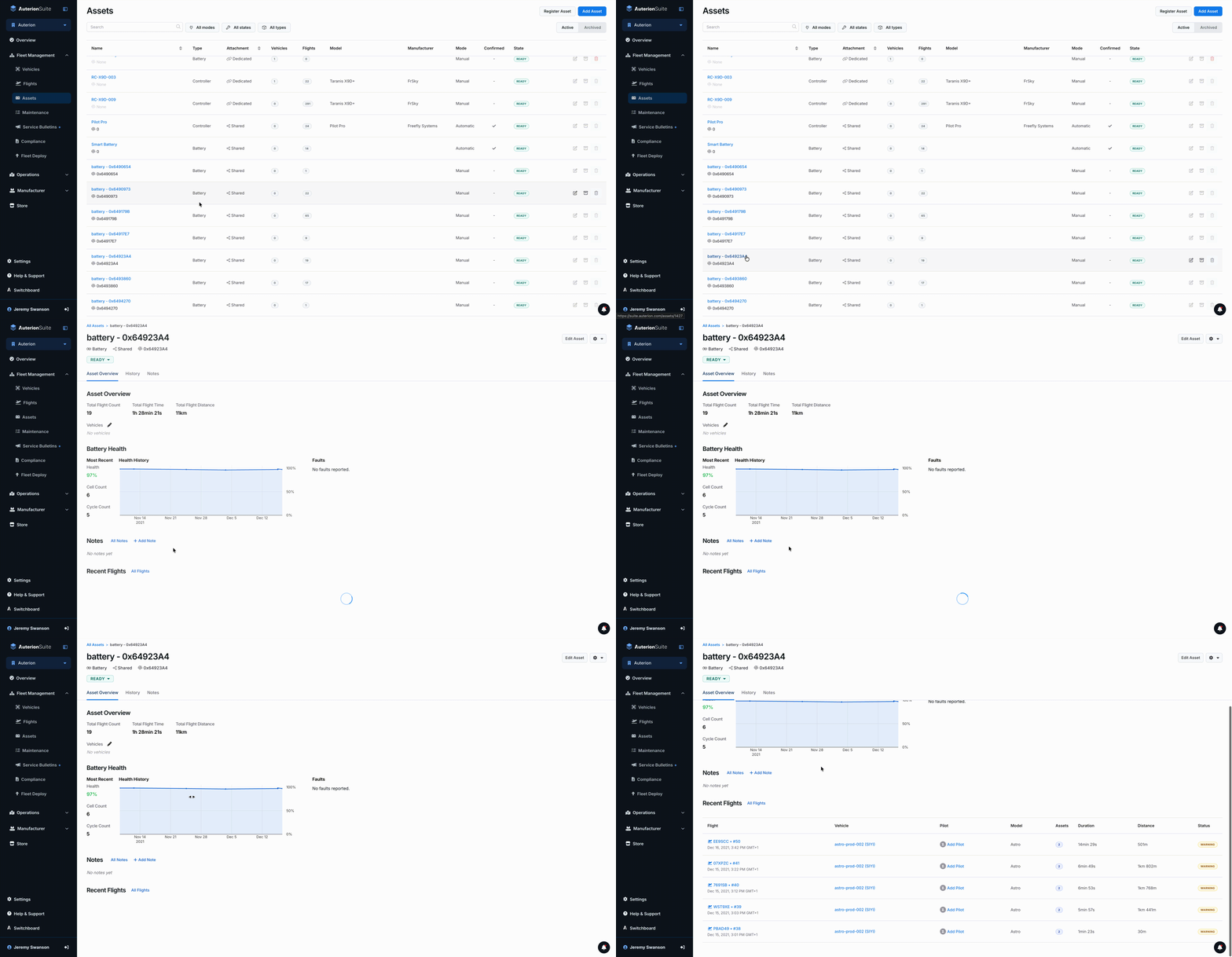
To view more details about an asset, click it in the Assets table. This opens the asset detail page, which shows tracked flights, notes, and, for batteries, battery health information.
### Edit an Asset
To edit an asset:
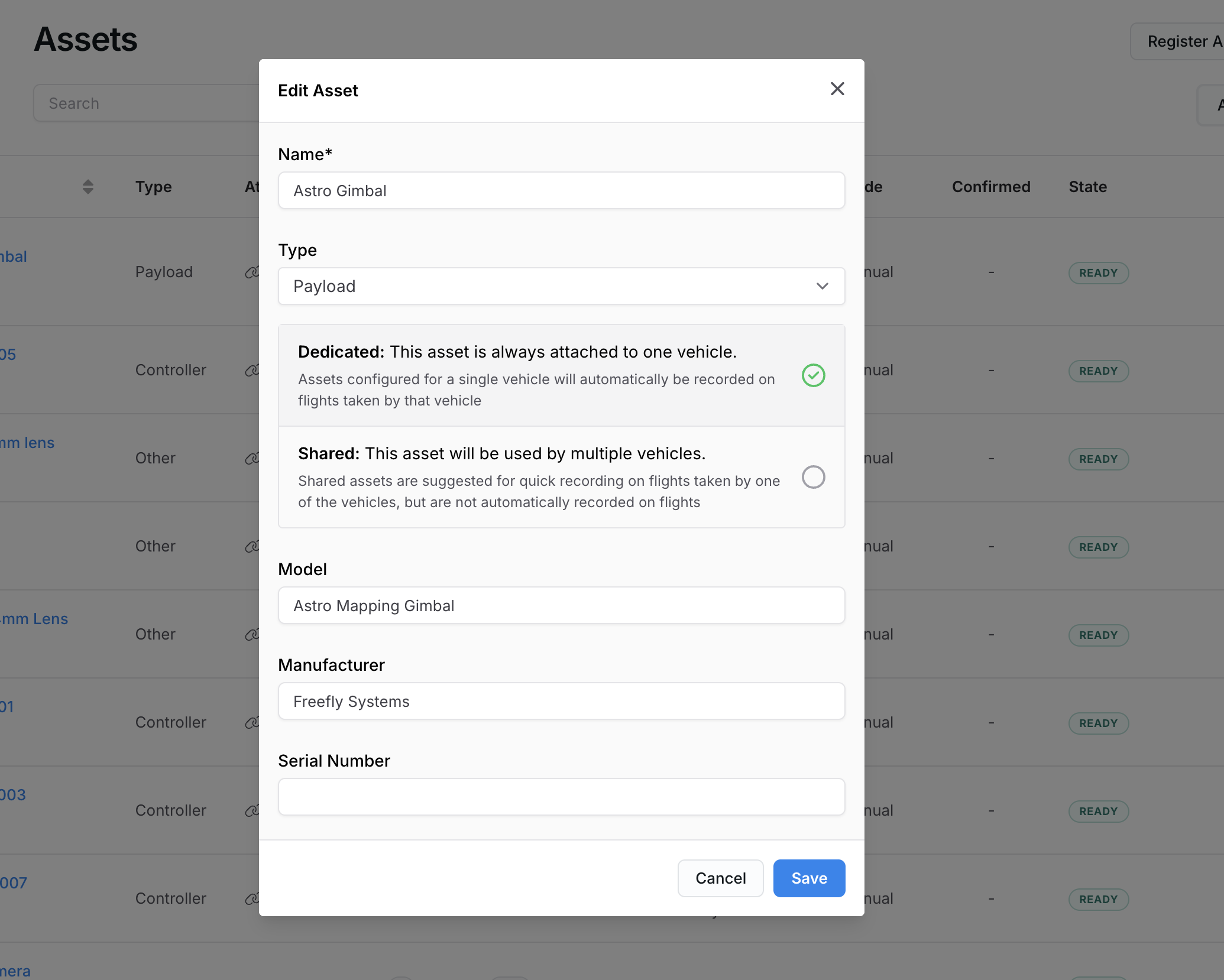
1. Click the **edit icon** in the Assets table, or select **Edit Asset** on the asset detail page.
2. Update the required fields in the dialog.
3. Click **Save**.
{% hint style="warning" %}
Automatically created assets are always dedicated to a vehicle, so you cannot change them from dedicated to shared.
{% endhint %}
### Assign Assets to Vehicles
1. In the asset page under Asset Overview click the pen icon.
2. In the pop-up select the vehicle(s) you want to assign the asset to.
3. You can also remove vehicles by clicking on the X next to their name.
4. Click Done to confirm.
5. In the vehicle page under Assets click the pen icon.
6. In the pop-up select the asset(s) you want to assign to the vehicle.
7. You can also remove assets by clicking on the X next to their name.
8. Click Done to confirm.
To assign a shared asset to one or more vehicles, use one of the following methods.
{% tabs %}
{% tab title="From the asset page" %}
1. In the asset page under Asset Overview click the **pen icon**.
2. In the pop-up select the vehicle(s) you want to assign the asset to.
3. You can also remove vehicles by clicking on the X next to their name.
4. Click **Done** to confirm.
{% endtab %}
{% tab title="From the vehicle page" %}
* In the vehicle page under Assets click the **pen icon**.
* In the pop-up select the asset(s) you want to assign to the vehicle.
* You can also remove assets by clicking on the X next to their name.
* Click **Done** to confirm.
{% endtab %}
{% endtabs %}
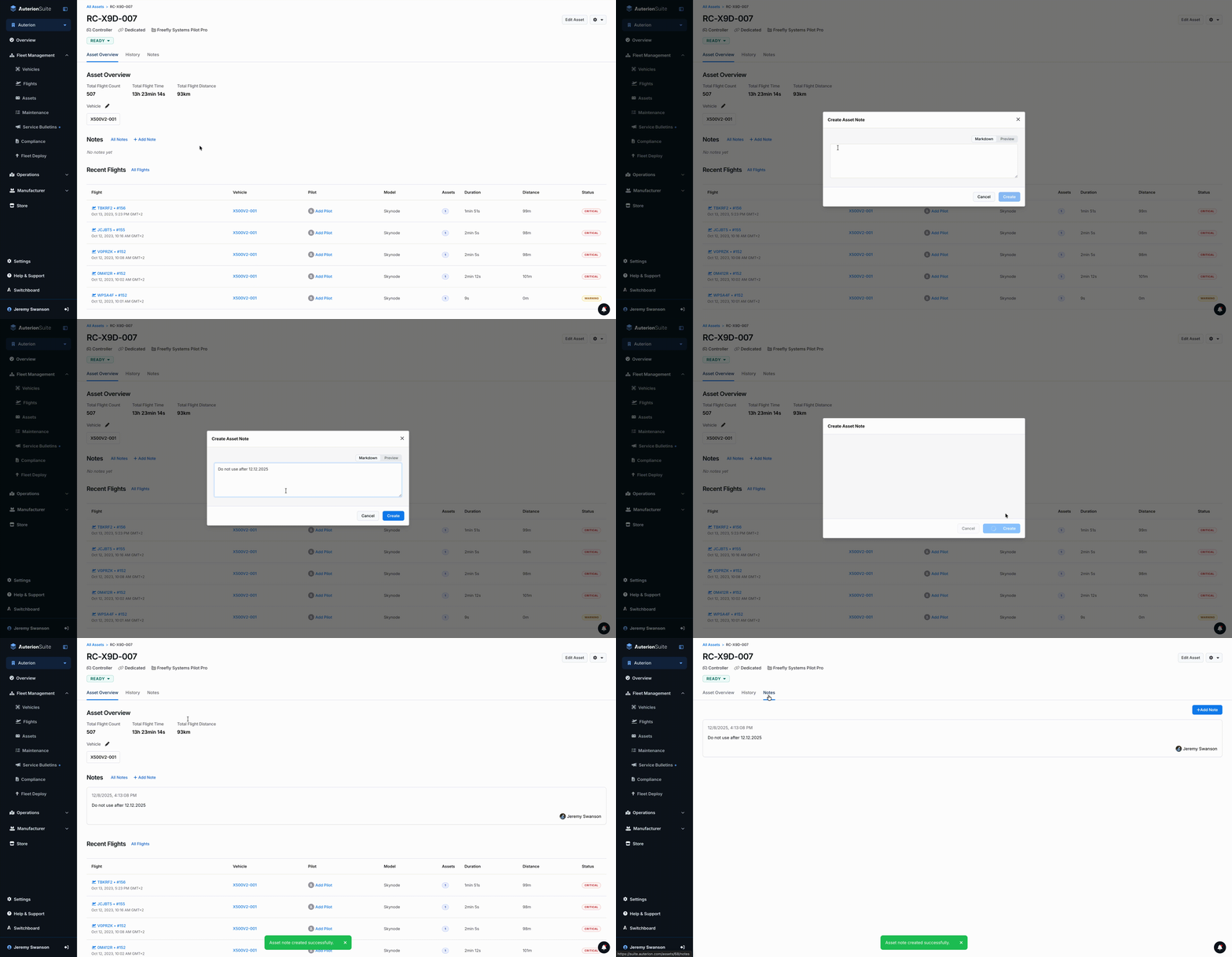
### Add Notes to an Asset
Add notes to an asset to record issues, maintenance actions, or usage context. Notes are created and viewed on the asset’s detail page and remain tied to that specific asset, making it easier to track its history over time.
To create a note:
1. Open the asset’s detail page in Auterion Suite.
2. Go to the **Notes** tab.
3. Select **Add note**.
4. Enter your note and click **Create**.
All notes for that asset are listed in the **Notes** tab.