> For the complete documentation index, see [llms.txt](https://docs.auterion.com/llms.txt). Markdown versions of documentation pages are available by appending `.md` to page URLs; this page is available as [Markdown](https://docs.auterion.com/vehicle-operation/auterion-mission-control/useful-resources/operations/grouping-images-with-asset-tag.md).
# Grouping Images with Asset Tag
Asset Tag lets you define named locations and tag your images to them. Images are then automatically grouped by location, making it easy to sort and later retrieve them. For example, all images captured at the same cell tower or power transmission pole.
{% hint style="warning" %}
This feature is available from **AMC v1.37.0** and requires an Auterion Suite **Enterprise** subscription. To obtain an Enterprise subscription, please contact us [here](https://auterion.com/company/contact-us/).
{% endhint %}
***
## Before You Start
### **You Need**
* A drone with an active camera connected and working in AMC. This feature has been validated with the following cameras: Sony ILX and Sony A7R IV.
* Auterion Suite with an active **Enterprise** subscription.
* A Ground Control Station running **AMC v1.37.0 or later**.
* A JSON file containing the locations you want to tag (you’ll create this in the next section).
#### Preparing the JSON file
Each location is defined by a name, latitude, and longitude. You will add these locations to a JSON file before importing them into AMC.
Prepare a JSON file that matches the structure shown below using a text editor such as Notepad (Windows) or TextEdit (macOS):
**Template:**
```
[
{
"name": "name of asset 1",
"lat": 10.000000,
"lon": 20.000000
},
{
"name": "name of asset 2",
"lat": 11.000000,
"lon": 21.000000
}
]
```
**Field description:**
* **`name`** – the label that will be shown for the asset in AMC. You can choose any name for this.
* **`lat`** – latitude in decimal degrees (positive for north, negative for south).
* **`lon`** – longitude in decimal degrees (positive for east, negative for west).
**Example:**
```
[
{
"name": "tower1",
"lat": 37.413488,
"lon": -121.997871
},
{
"name": "area51",
"lat": 37.413573,
"lon": -121.997389
},
{
"name": "lake 8765",
"lat": 37.413980,
"lon": -121.996466
},
{
"name": "hedge",
"lat": 37.414227,
"lon": -121.995637
}
]
```
{% hint style="success" %}
You can copy decimal coordinates from most map tools (for example, by right-clicking a point in Google Maps).
{% endhint %}
Save this file with the extension `.json` (for example, `assets.json`). You’ll upload this file in the next step.
***
## Using Asset Tag
### Import the assets to AMC
{% hint style="info" %}
This feature is only available from AMC v1.37.0
{% endhint %}
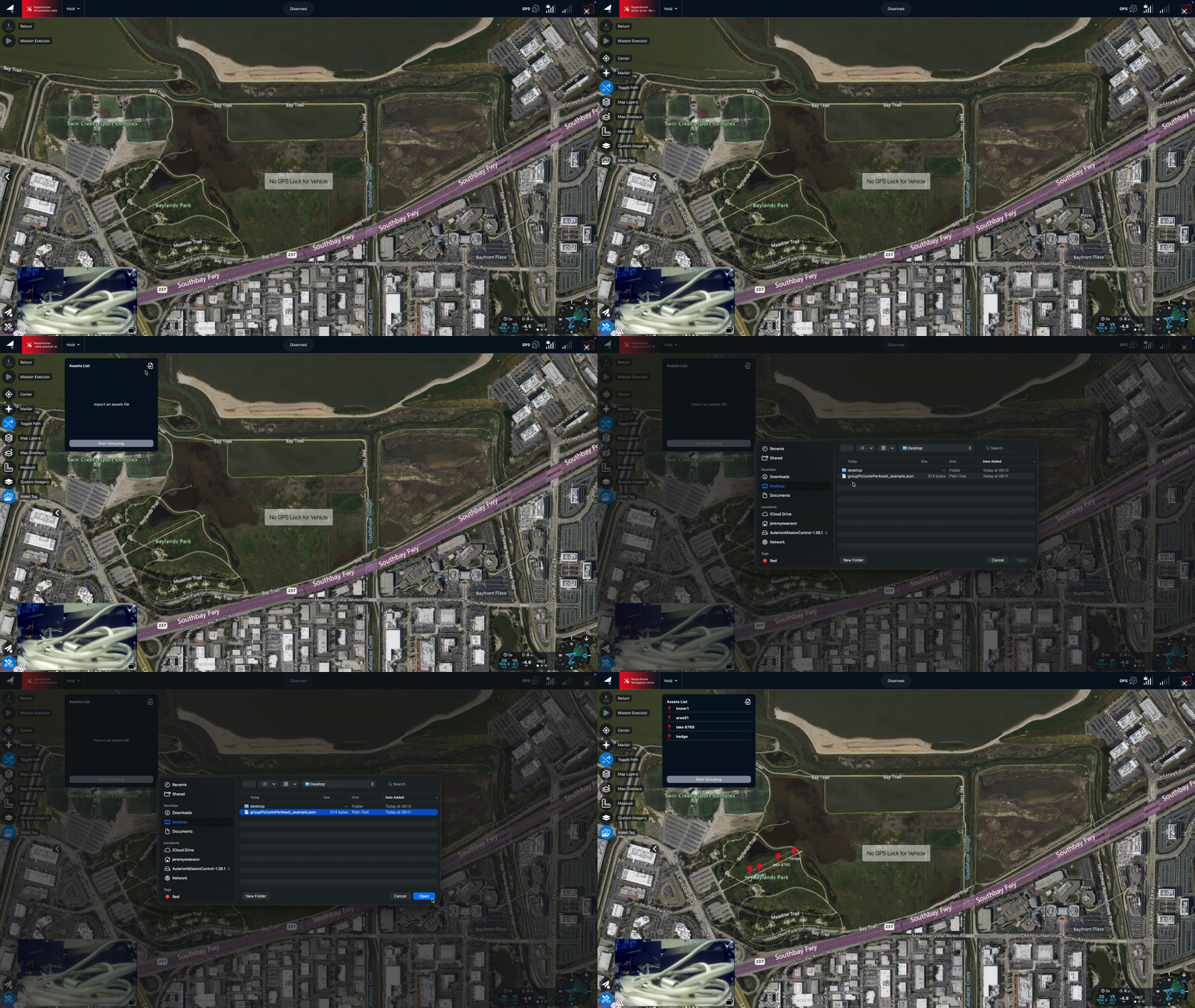
1. Open **AMC** on your GCS.
2. Click the **Tools** **icon** in the bottom left corner.
3. Select **Asset Tag** (Picture Icon).
4. Click the **Upload** button and select the JSON file you prepared.
5. After the JSON is uploaded, you will see the asset names in the list and their pins on the map.
### **Assign images to an asset**
To assign images to an asset:
1. Select one asset from the list.
2. Click **Start Grouping** to begin assigning images to the asset. As result, all images captured while grouping is active are automatically **tagged (associated)** with the selected asset.
* On the map, the pin for that asset turns from red to blue, indicating that new images are now being tagged to this asset.
**To tag images to a different asset:**
1. Click **Stop Grouping**. The asset pin turns from blue back to red, indicating that images are no longer being tagged.
2. Select a new asset from the list.
3. Click **Start Grouping** again.
### Accessing stored images
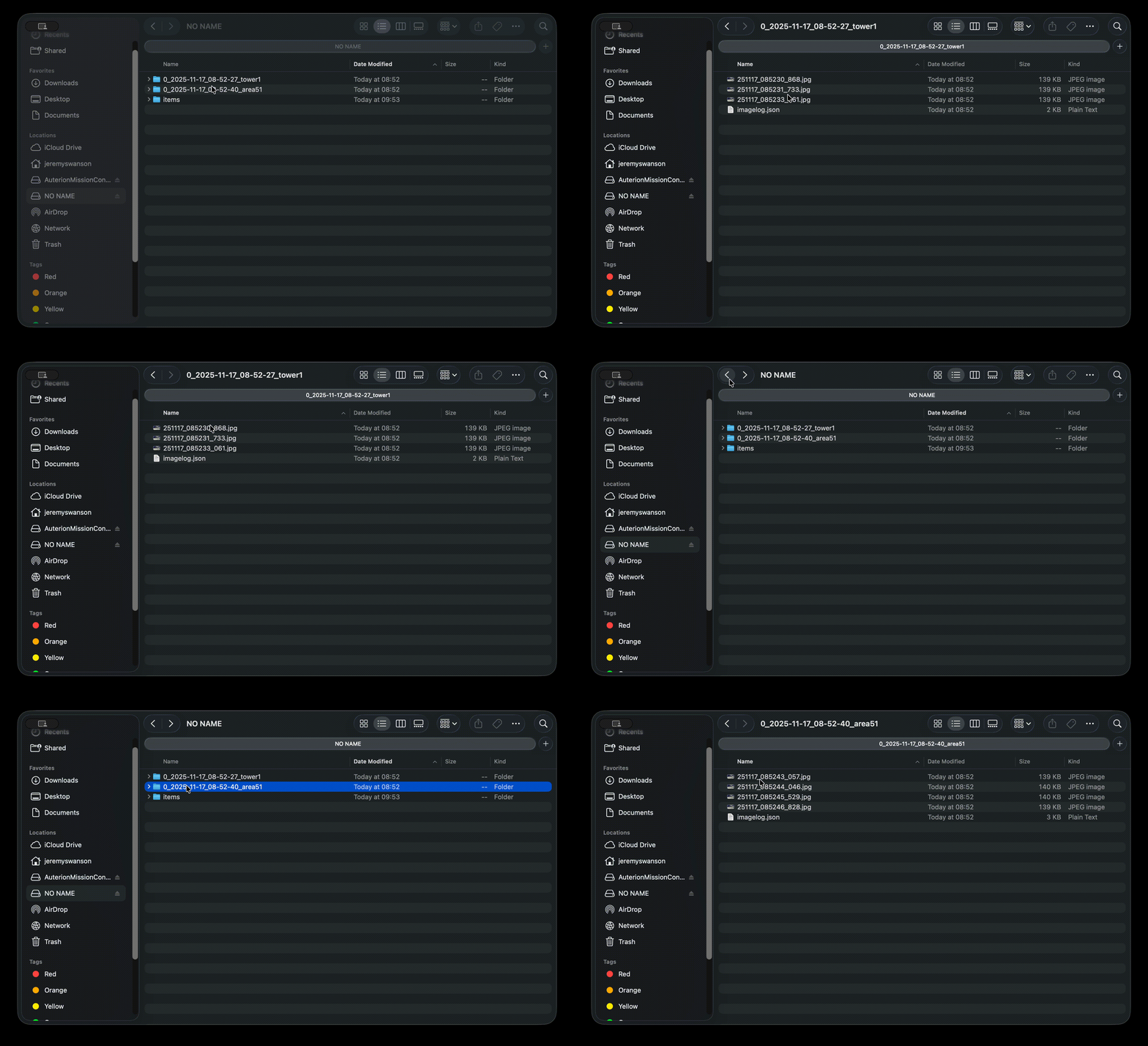
Your images are automatically stored and organized into folders named after each asset.\
Open the relevant folder to browse, view, or export the images associated with each asset.
With Asset Tag set up, your images will now stay consistently organized by asset, making inspections more efficient. 🚀
.gif?alt=media&token=c16cc6ff-fa66-4490-87dc-e988cdd70876)