> For the complete documentation index, see [llms.txt](https://docs.auterion.com/llms.txt). Markdown versions of documentation pages are available by appending `.md` to page URLs; this page is available as [Markdown](https://docs.auterion.com/vehicle-operation/auterion-mission-control/useful-resources/operations/gps-denied-workflow.md).
# GPS Denied Workflow
#### GPS Advanced settings can be found in the Vehicle Overview ⇾ **More Tab or accessed from the GPS/INS icon at the top bar.**
**Configure the GPS Advanced Settings**
**Section 1:** Enable GNSS Denied Navigation Support
* Check the first box under GNSS denied settings - "Enable manual selection of navigation mode, show raw GPS position and accuracy radius, and allow manual position reset"
* Change the Navigation Mode from "GPS" to "Disabled"
* Enable takeoff without requiring a GPS lock, when planning to fly in Altitude or Position modes
Alternatively, you can change the Navigation Mode and access Advanced GPS Settings by clicking on the GPS/INS icon in the top bar. When GPS is Disabled, the blue GPS icon changes to a grey INS icon.
\*INS = inertial navigation system, it relies on sensors and doesn't use GPS in the calculation of the drone's position
{% columns %}
{% column width="50%" %}
GPS enabled
{% endcolumn %}
{% column width="50%" %}
GPS disabled.png?alt=media\&token=e4e87386-17d9-4d15-a254-3d1e052f4b7a)
{% endcolumn %}
{% endcolumns %}
* After switching to a GPS Disabled mode, two pop-ups will appear at the top right corner and at the bottom of the screen where you can manually reset the vehicle's position by inputting the coordinates or tapping on the map.
* Enable manually setting the wind direction and speed before takeoff: this is available on the ground and is useful for vehicles with an airspeed sensor to have a more accurate position at the start of the flight. When the setting is enabled, a cog wheel appears on the wind-speed estimator at the bottom right corner. After clicking on it, wind direction and speed can be manually set.
**Section 2:** Enable Home Position Setting
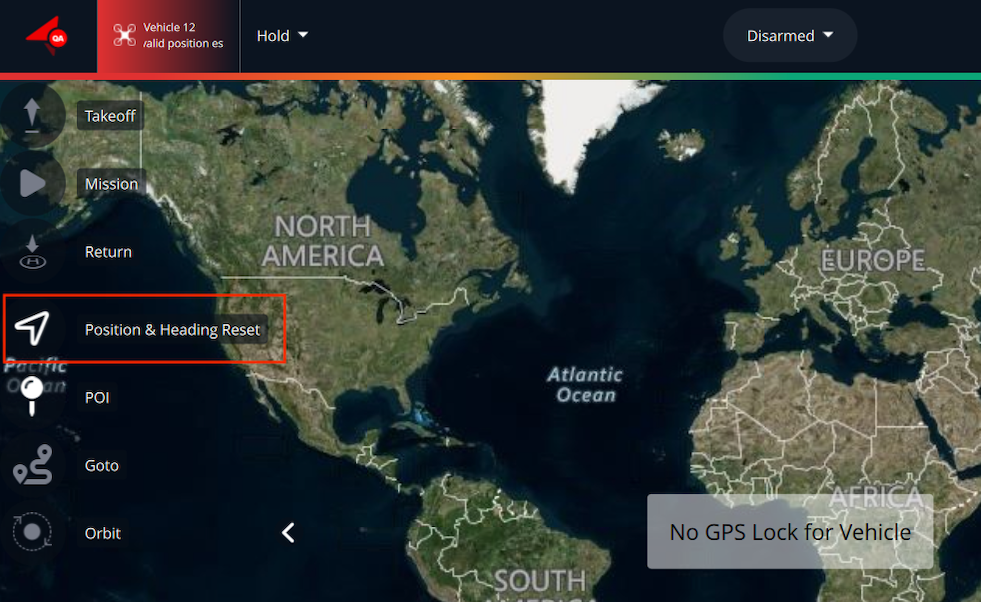
* Below the GNSS Denied Settings, in the Mobile operations section, enable the option to Manually set the vehicle's Home Position. Then, click the “H” icon on the map or use the “Position & Heading Reset” menu in the Tool Strip.
From the “Position & Heading Reset” menu in the Tool Strip, you can also set the vehicle and home positions as well as input values for:
* CFov Position: if the camera supports Camera Center Field of View, this allows resetting it's position
* Vehicle Heading: resets the vehicle orientation
Setting accurate values for these indicators, helps estimate a better position when GPS is disabled.


.png?alt=media&token=664f6124-a8df-4089-98b9-875dce578e6b)

.png?alt=media&token=ff1a2521-9aaa-4e71-8e07-6221d5ee27f8)