> For the complete documentation index, see [llms.txt](https://docs.auterion.com/llms.txt). Markdown versions of documentation pages are available by appending `.md` to page URLs; this page is available as [Markdown](https://docs.auterion.com/vehicle-operation/auterion-mission-control/useful-resources/mission-planning/preflight-checklists.md).
# Preflight Checklists
## Overview
Preflight checklists help teams standardize flight preparation, reduce human error, and ensure every mission starts with consistent safety and compliance checks. In Auterion, you can author checklist content as a JSON file and deploy it either company-wide through Auterion Suite or locally on a single vehicle through Auterion Mission Control (AMC).
## Before you start
#### **You Need**
* Auterion Suite with an active **Enterprise** subscription.
* A Ground Control Station running **AMC v1.38.0 or later** and logged in with your Pilot Profile.
* A JSON file containing the preflight checklist content (you’ll create this in the next section).
#### Preparing the JSON file
Preflight checklists are structured into **main titles**, **groups**, and **individual steps**. Each step includes a **title** and **description**. You define these titles, groups, and steps in your checklist.
To create your checklist, prepare a JSON file matching the structure below. Use any plain-text editor, such as Notepad (Windows) or TextEdit (macOS).
**Template:**
```
{
"mainTitle":"Auterion",
"groups":[
{
"title":"Group 1",
"preflightCheckList":[
{
"title":"First check",
"description":"Description of first check"
},
{
"title":"Second Check",
"description":"Description of second check"
}
]
},
{
"title":"Group 2",
"preflightCheckList":[
{
"title":"First check of group 2",
"description":"Description of first check of group 2"
},
{
"title":"Second Check",
"description":"Description of second check of group 2"
}
]
}
]
}
```
**Field Descriptions:**
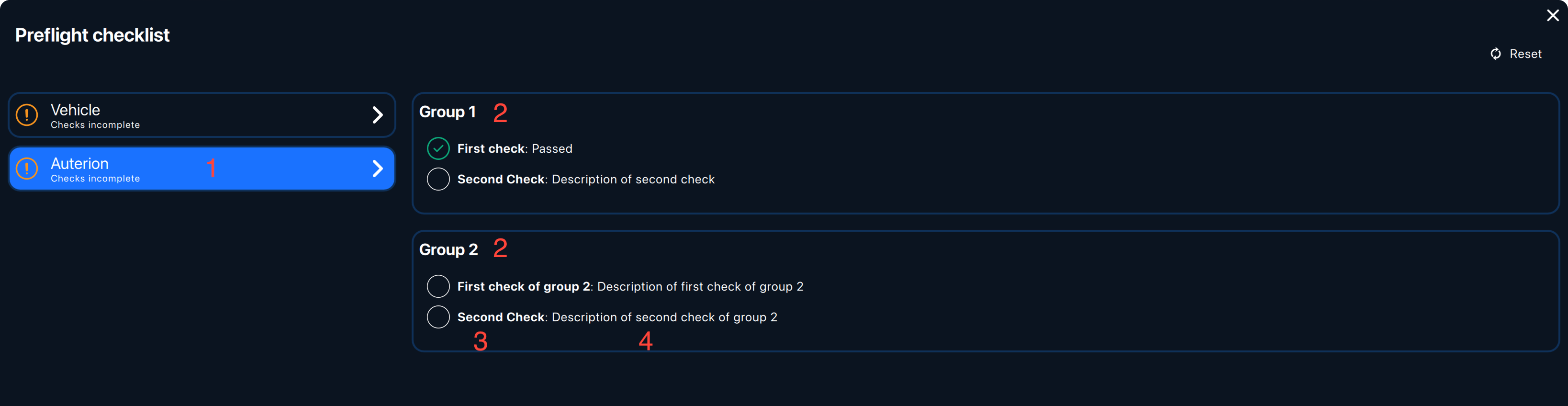
1: `mainTitle` — Defines the the top-level title displayed in the preflight checklist overview.
2: `title` — Defines the title in the preflight checklist group within `groups` .
3: `title` — Defines the title of an individual checklist step within `preflightChecklist` .
4: `description` — Sets the description of the checklist step within `preflightChecklist` .
**Example:**
```
{
"mainTitle":"Auterion Pre-flight Checklist v0.0.1",
"groups":[
{
"title":"Weather Check",
"preflightCheckList":[
{
"title":"Check Rain",
"description":"Please check for rain in the area"
},
{
"title":"Check Clouds",
"description":"Please check for cloud cover"
}
]
},
{
"title":"Equipment",
"preflightCheckList":[
{
"title":"Propellers Check",
"description":"The propellers are in good condition and ready for flight."
},
{
"title":"Battery Check",
"description":"The battery is fully charged and ready for flight."
}
]
}
]
}
```
Save your file with the extension `.json` (for example, `preflight.json`). You’ll upload this file in the next step.
***
## Activating Preflight Checklists
You can add the Preflight checklist in AMC using 2 methods:
### Through Auterion Suite
{% hint style="warning" %}
Activating a preflight checklist in Suite enables it company-wide for all vehicles.
{% endhint %}
1. Log in to **Auterion Suite**.
2. In the side menu, navigate to **Fleet Management** → **Compliance**.
3. Under **Pre-flight Checklist**, select **Add**.
4. In the dialog, enter a **name** (This name is only visible within Suite).
5. Click **Select File** and upload your **checklist JSON**.
6. Review the file in the preview window, then click **Add**.
7. To enable the checklist for your entire fleet, toggle it to **Active.**
{% hint style="info" %}
Select the **Preview** icon to rename the checklist or upload a new JSON file.
{% endhint %}
Through AMC
{% hint style="warning" %}
Activating the Preflight checklist in AMC enables it for that vehicle only.
{% endhint %}
1. Ensure your checklist file name ends with **`.preflightCheckList`** (for example, `myChecklist.preflightCheckList`).
2. Open **AMC**.
3. In the side menu, go to **Settings** → **General**.
4. In **Preflight checklist**, use **Upload** to select and upload your JSON file.
## Using the Preflight Checklist
After installing your Preflight checklist (in Suite or AMC), open it from **Quick Settings** → **Preflight checklist**.
The checklist appears under your default vehicle checklist. You can now confirm each step as you complete it. To start over, use **Reset** in the top-right corner.
### Settings
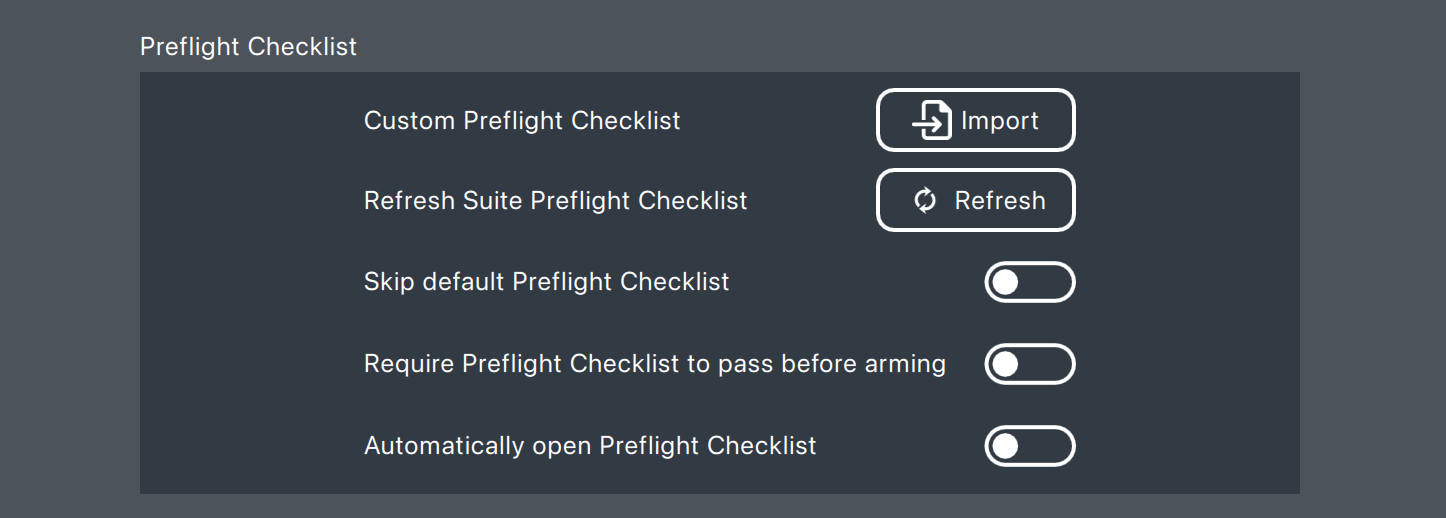
The **Preflight Checklist** section in AMC includes the following options:
* **Import / Remove**: This is how you manage the Import or removal of the Preflight checklist from the vehicle.
* **Refresh** - Ensures AMC is using the latest preflight checklist from Suite.
* **Skip Default Preflight Checklist** - Disables the default vehicle checklist so you can focus on your imported checklist.
* **Require Preflight Checklist to pass before arming** - Requires the imported checklist to be completed before the vehicle can be armed.
* **Automatically open Preflight Checklist** - Opens the preflight checklist automatically when AMC starts.