> For the complete documentation index, see [llms.txt](https://docs.auterion.com/llms.txt). Markdown versions of documentation pages are available by appending `.md` to page URLs; this page is available as [Markdown](https://docs.auterion.com/vehicle-operation/auterion-suite-fleet-management/manufacturer/manufacturer-tools.md).
# Suite Manufacturer Tools
Auterion offers software and hardware to assist with all stages of the manufacturing process. These workflows are designed to facilitate easy verification of the Skynode platform as well as assisting with vehicle sales and vehicle configuration once in customers' hands.
## How to get access?
To get access to the Manufacturer section it is necessary to have an active Auterion Company Account. If you do not yet have one, please follow the [Auterion Sign-up guide](/auterion-sign-up.md).
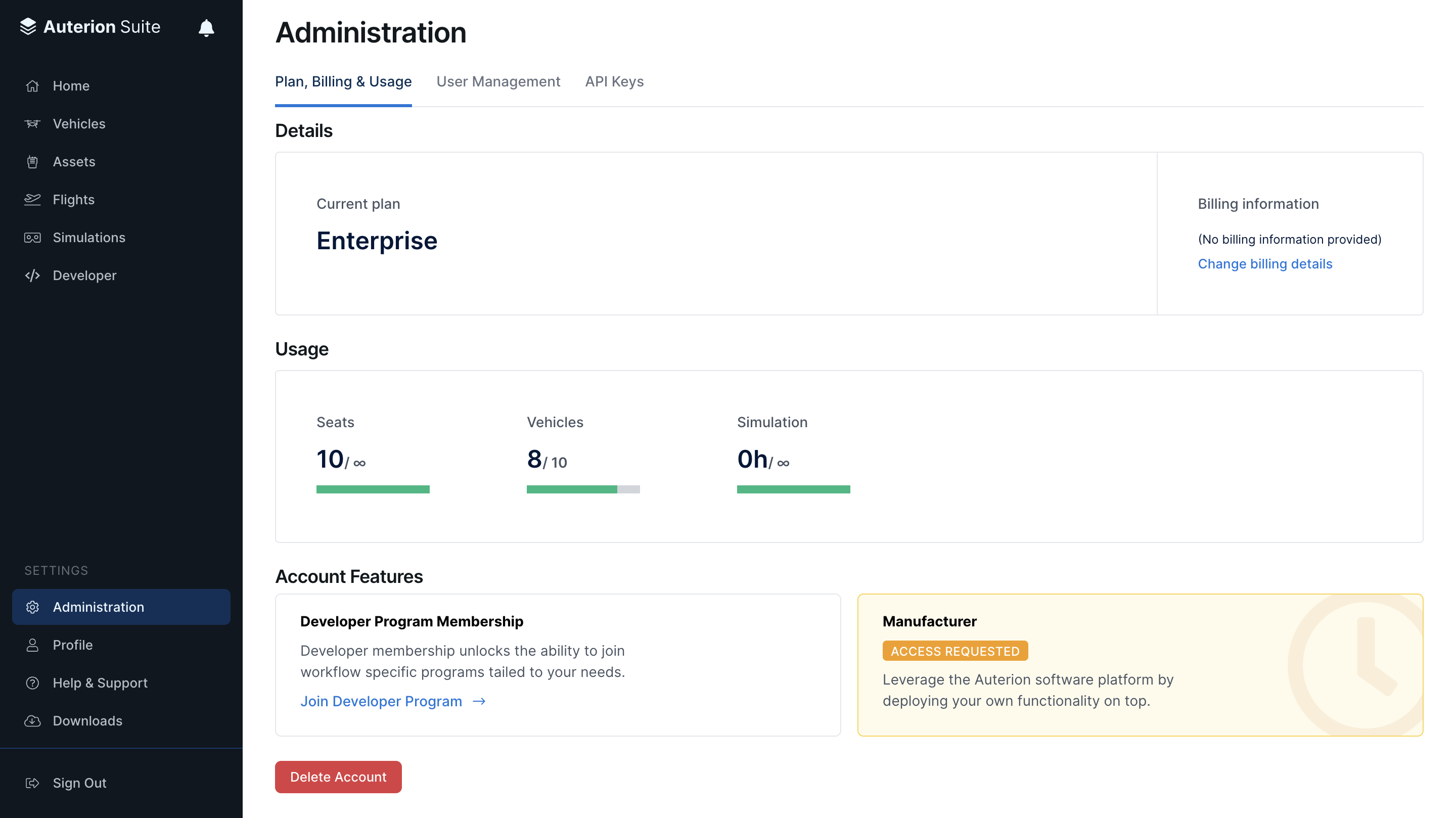
Once you have an active account sign in to [Auterion Suite](https://suite.auterion.com/) and navigate to the Administration tab's "Plan, Billing & Usage" page where you can request access to the Manufacturer section and its tools.
## Auterion-enabled Workflow
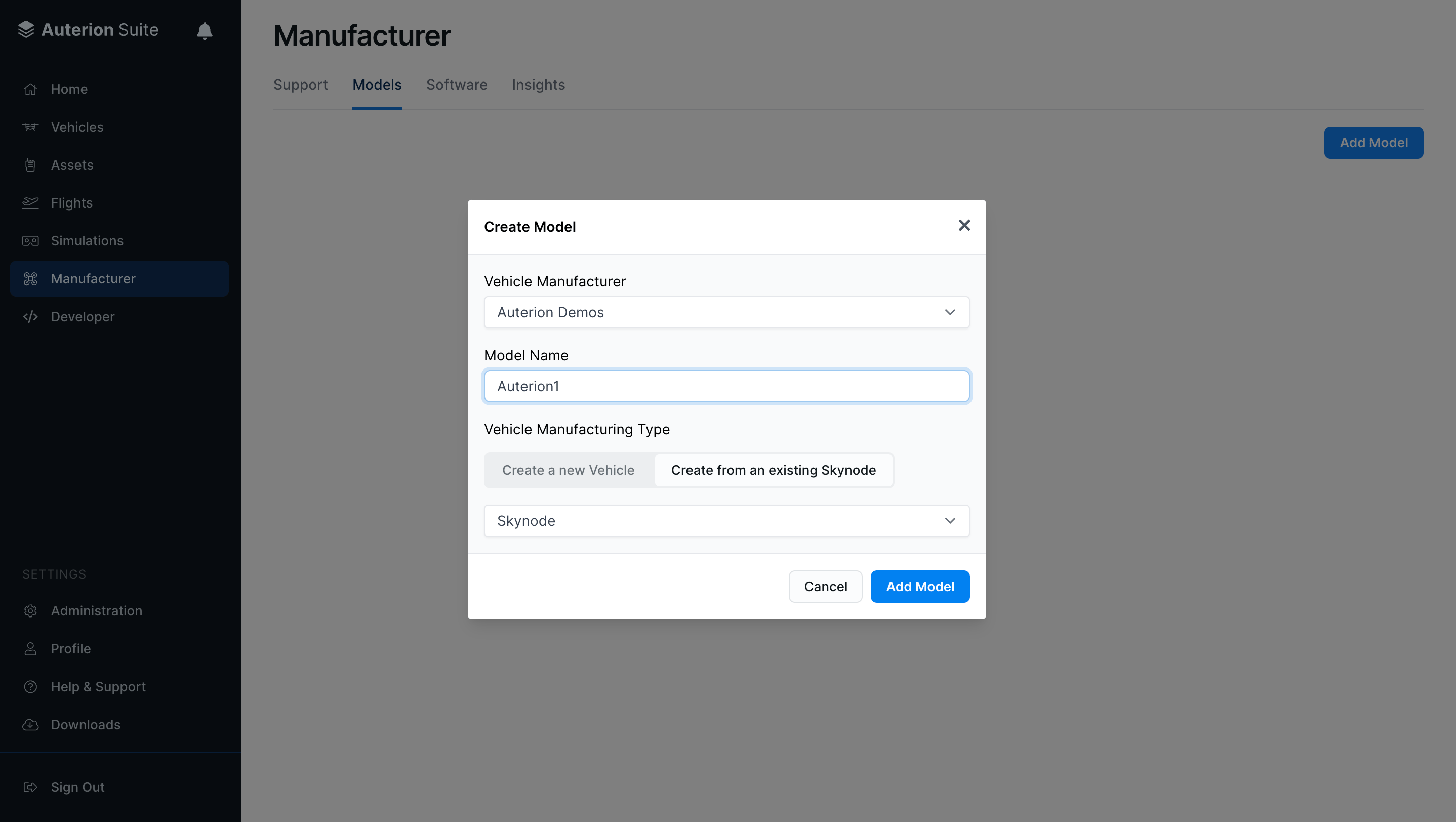
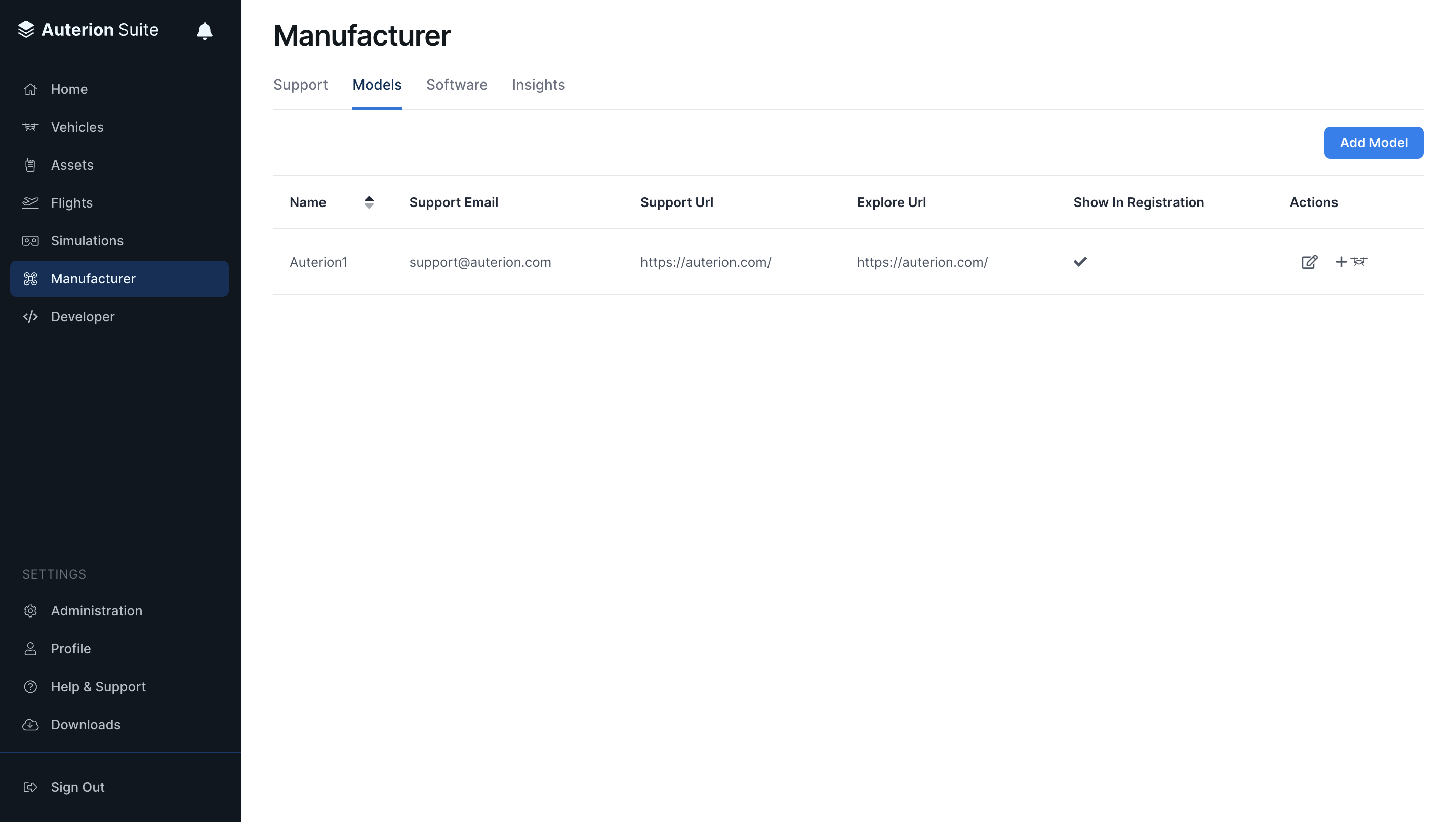
1. **Create a model** from an existing Skynode.\
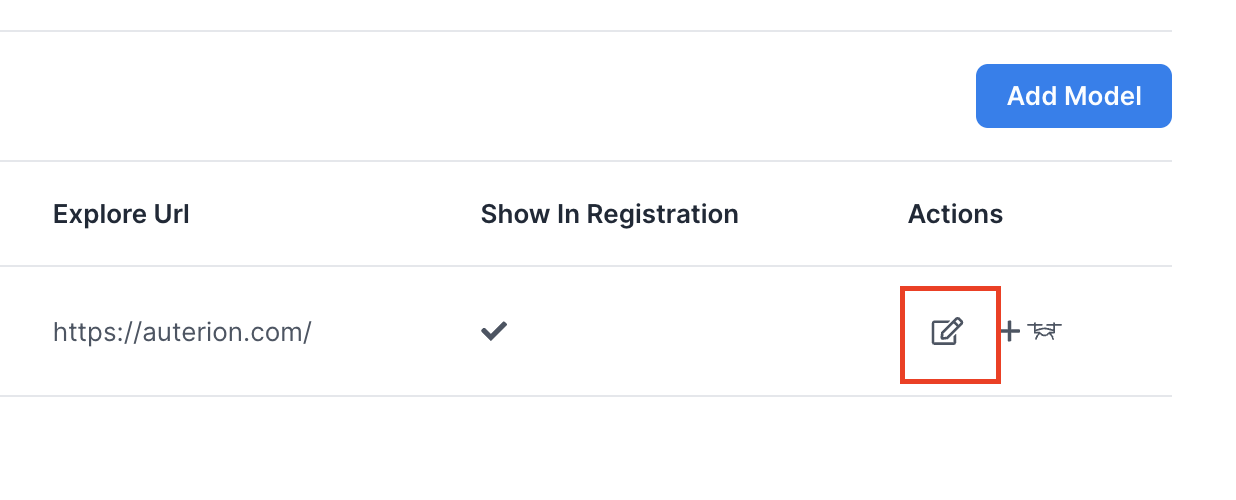
Once created, you can change the model settings by clicking on the edit icon under the "Actions" column of the models page. These changes are required before selling the vehicle to end-users.
Create a model
Change your model settings, by clicking on the edit icon
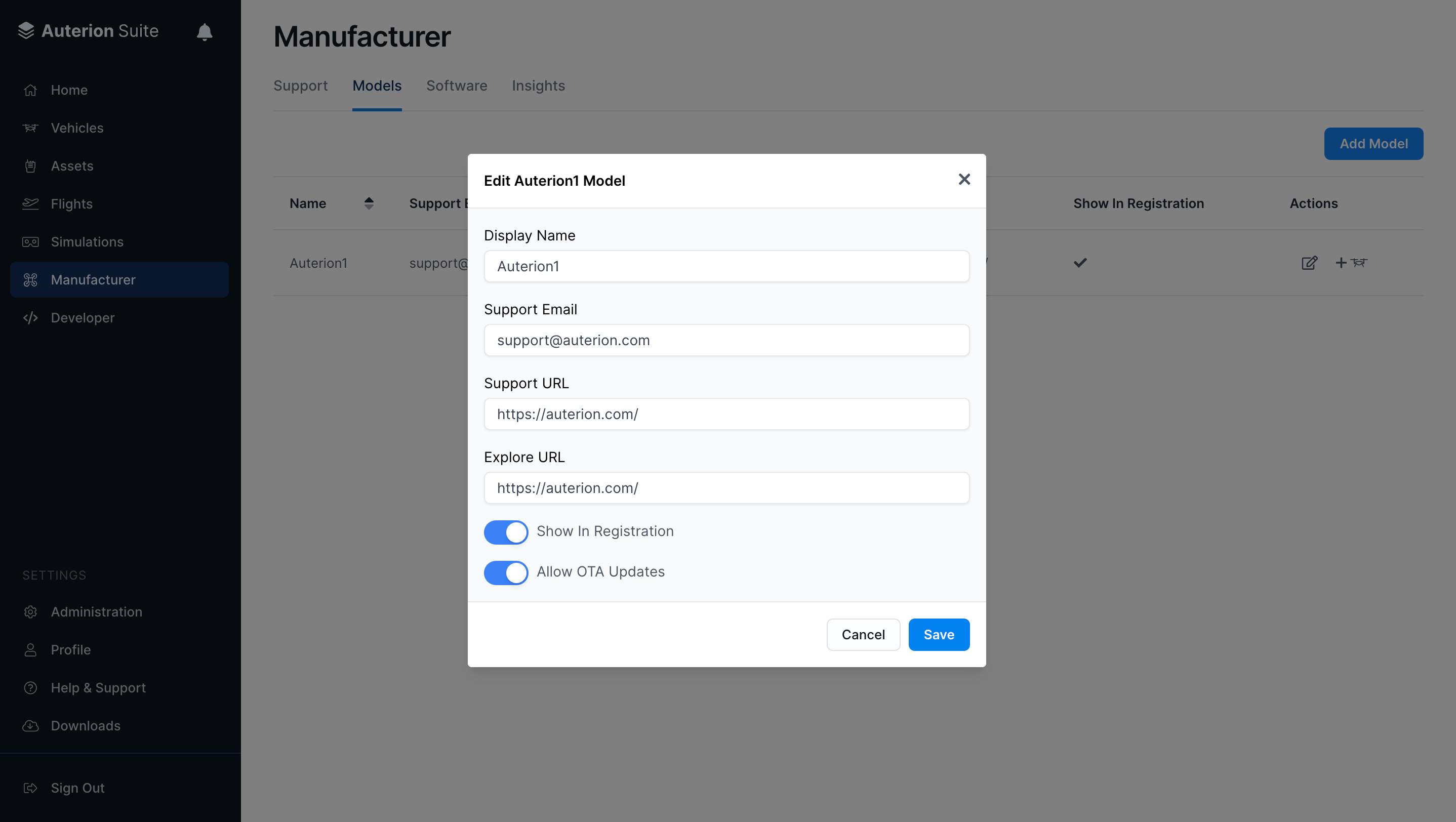
#### Change model settings:
* **Display Name** - Vehicle model name that appears in Auterion Suite
* **Support Email** - Your company's support email address, notifications for logs are sent here
* **Support URL** - Your company's support page, shown in your customers' Help & Support section
* **Explore URL** - Your company's website
* **Show in Registration** - If enabled, the vehicle will be available for the customer to activate
* **Allow OTA Updates** - If enabled, allows over-the-air software updates
Model Settings
2. **Activate your Skynode**
Your model in the Suite
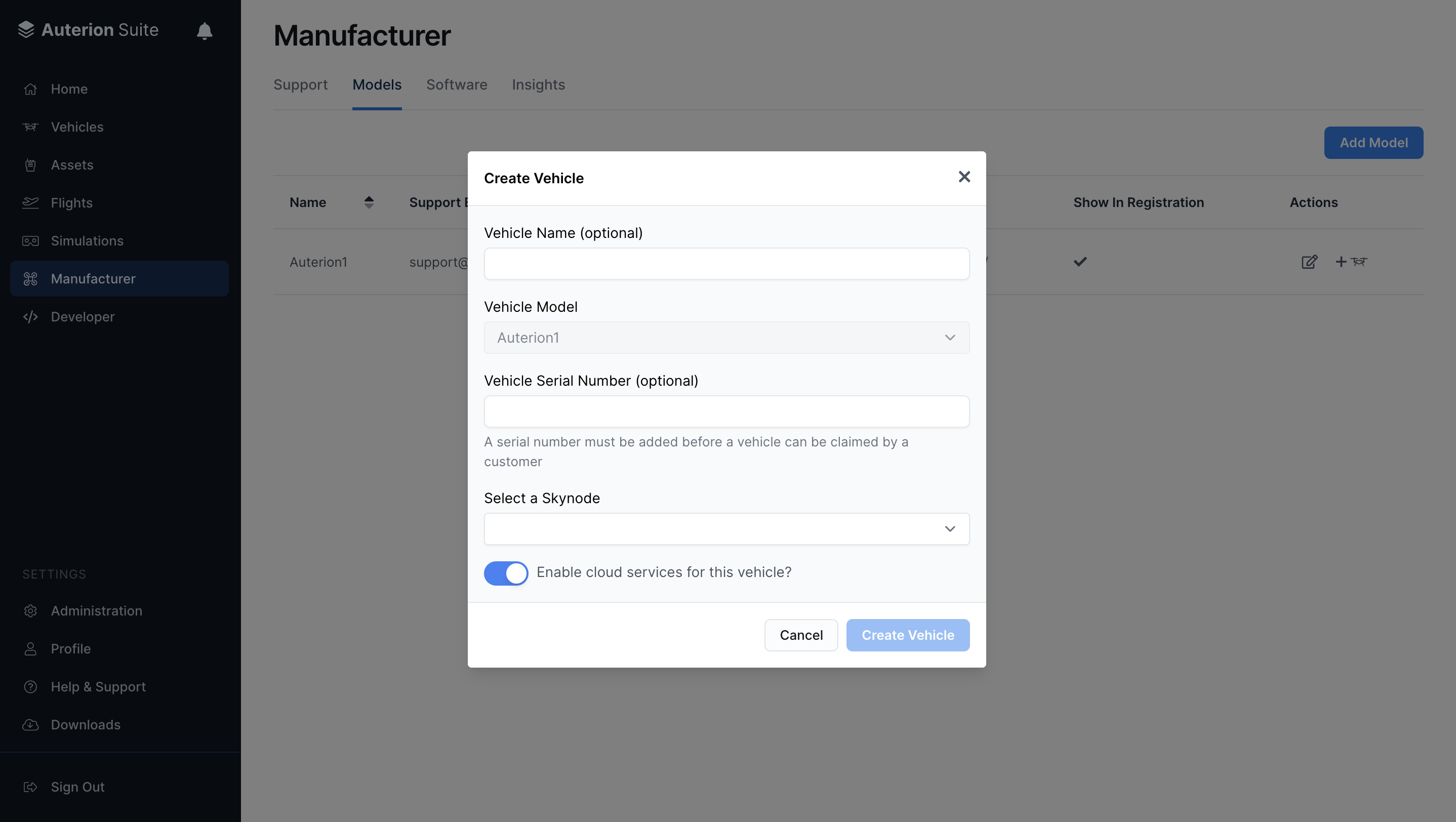
3. **Create a Vehicle based on a Model**\
Vehicle creation is the process of recording the newly manufactured vehicle in Auterion Suite with the following details:
* Give a vehicle name
* Select a vehicle model
* Add a vehicle serial number
* Select an active Skynode
{% hint style="info" %}
This association will create a new vehicle record which a customer can later register and use in Auterion Suite.
{% endhint %}
Create a vehicle
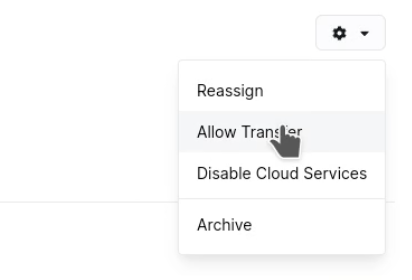
4. **Unlocking for Sale**\
When production of a vehicle is finished and the vehicle is ready to be sold, it must be **unlocked for transfer.** A vehicle can be unlocked from the vehicle list, or directly through the[ Cloud SDK.](https://api.auterion.com/docs/)
Allow transfer
{% hint style="info" %}
Vehicles cannot be claimed and transferred without first being unlocked. This final step protects the vehicles and your future customers from incorrect association or registration.
{% endhint %}
5. **Customer Registration**\
Once customers receive their new vehicles, they can use the [**quickstart**](http://suite.auterion.com/quickstart) setup tool to automatically detect and register them. Upon registration, vehicles will be transferred to the customers' accounts, from the manufacturer's account. Customers can then use and manage their new vehicles.
{% hint style="info" %}
The manufacturer has access to all flight logs that have been "Shared with the manufacturer" through the Support tab.
{% endhint %}