> For the complete documentation index, see [llms.txt](https://docs.auterion.com/llms.txt). Markdown versions of documentation pages are available by appending `.md` to page URLs; this page is available as [Markdown](https://docs.auterion.com/vehicle-operation/auterion-mission-control/useful-resources/maps-and-custom-overlays/monitor-local-flights-with-ads-b.md).
# Monitor Local Flights with ADS-B
ADS-B flight data can be fed into Auterion Mission Control to visualize nearby aircraft as an overlay in the Fly View. Monitoring your surroundings in this way while flying increases flight security and helps to avoid serious incidents, especially when flying close to airports. If a potential collision is detected, PX4 can warn or make the drone immediately land or return (set the desired action with the [NAV\_TRAFF\_AVOID](https://docs.px4.io/main/en/peripherals/adsb_flarm.html#NAV_TRAFF_AVOID) parameter).
ADS-B data can be fed into Auterion Mission Control in two ways of which only one should be used at any given time:
* Connecting an ADS-B receiver to Skynode
* Connecting an ADS-B receiver to the ground control station
## Connecting an ADS-B Receiver to Skynode
ADS-B receivers that support the MAVLink protocol (such as the [pingRX Pro](https://uavionix.com/products/pingrx-pro/)) can be connected to Skynode's TELEM ports (make sure to choose a TELEM port that's not in use already). If the receiver is connected to the TELEM3 port, the relevant PX4 parameters have to be set as follows (reboot as prompted and after having set all listed parameters):
* MAV\_1\_CONFIG = TELEM 3
* MAV\_1\_MODE = Normal
* MAV\_1\_RATE = 0 (default sending rate for port)
* MAV\_1\_FORWARD = Enabled
* SER\_TEL3\_BAUD = 57600
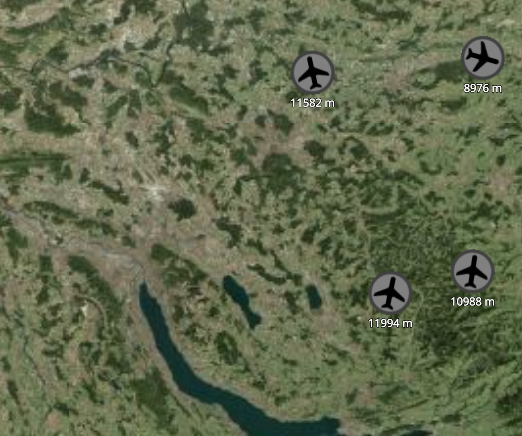
The airplane icons indicate aircraft nearby.
Nearby airplanes shown on the map in Auterion Mission Control's Fly View
## Connecting an ADS-B Receiver to the Ground Control Station
To feed ADS-B data into Auterion Mission Control directly from the ground control station, connect a supported ADS-B receiver (such as the [RTL SDR v4 dongle](https://www.rtl-sdr.com/about-rtl-sdr/)) through a USB interface to the ground control station.
Auterion Mission Control listens for ADS-B data in the SBS format on a port and originating from an IP address that can be set by looking for the 'ADSB server' section in the 'Settings' tab in Auterion Mission Control.
To get ADS-B data fed into Auterion Mission Control, follow the steps below:
* Set up a local server that streams ADS-B data in SBS format
* The recommended way is to use [dump1090](https://github.com/antirez/dump1090) and start the server with the command `dump1090 --net` from the terminal. For this, follow the [dump1090 setup guide.](https://github.com/antirez/dump1090?tab=readme-ov-file#installation)
* Specify the IP address and port in Auterion Mission Control's ADS-B settings section that the server uses to stream data. The default settings are:
* Host address: 127.0.0.1
* Server port: 30003
* Turn on the 'Connect to ADSB SBS server' switch in Auterion Mission Control's ADS-B settings section
* Restart Auterion Mission Control
ADS-B server setting section in Auterion Mission Control
The airplane icons should be visible as soon as the dongle detects any aircraft.