> For the complete documentation index, see [llms.txt](https://docs.auterion.com/llms.txt). Markdown versions of documentation pages are available by appending `.md` to page URLs; this page is available as [Markdown](https://docs.auterion.com/vehicle-operation/auterion-apps/beyondline.md).
# BeyondLine
## Overview
BeyondLine lets you fly Auterion-powered drones over the mobile network (3G/4G) or Starlink, without using a traditional radio link.\
Once enabled, both the drone and the Ground Control Station (GCS) connect through a secure private network, allowing you to operate the aircraft **from anywhere with Cellular coverage**.
This is the perfect solution for:
* BVLOS missions
* Remote inspections
* Emergency & disaster-response operations
* Distributed fleet management
{% hint style="warning" %}
This feature is available from **AMC v1.38.0** and requires an Auterion Suite **Enterprise** subscription. To obtain an Enterprise subscription, please contact us [here](https://auterion.com/company/contact-us/).
{% endhint %}
***
## **Before You Start**
#### **You Need**
* A drone equipped with a working LTE connection (SIM installed and active) or Starlink module. Open the Quick Settings menu and make sure "LTE" is set to Active.
* Auterion Suite with an active **Enterprise** subscription.
* A Ground Control Station running **AMC v1.38.0 or later and logged** in with your Pilot Profile.
* **Tailscale Client** installed on your GCS device.
{% hint style="info" %}
Our BeyondLine technology leverages Tailscale VPN to establish the secure link between drone and GCS.
{% endhint %}
Follow the instruction below to install the Tailscale Client on your GCS. Our App will take care of the vehicle configuration!
Android
Download the Tailscale app for Android [here](https://play.google.com/store/apps/details?id=com.tailscale.ipn\&pcampaignid=web_share).
{% hint style="warning" %}
**Important:** Do not log into Tailscale. The connection will be configured in a later step.
{% endhint %}
MacOS
Download Tailscale app for MacOS [here](https://tailscale.com/download) or install using Homebrew in Terminal with
```
brew install --cask tailscale
```
{% hint style="warning" %}
**Important:** Do not log into Tailscale. The connection will be configured in a later step.
{% endhint %}
Windows
Download Tailscale app for Windows [here](https://tailscale.com/download/windows)
{% hint style="warning" %}
**Important:** Do not log into Tailscale. The connection will be configured in a later step.
{% endhint %}
Linux
Download Tailscale app for Linux [here](https://tailscale.com/kb/1031/install-linux) or install using Terminal:
```
curl -fsSL https://tailscale.com/install.sh | sh
```
{% hint style="warning" %}
**Important:** Do not log into Tailscale. The connection will be configured in a later step.
{% endhint %}
***
### Vehicle Setup (Drone)
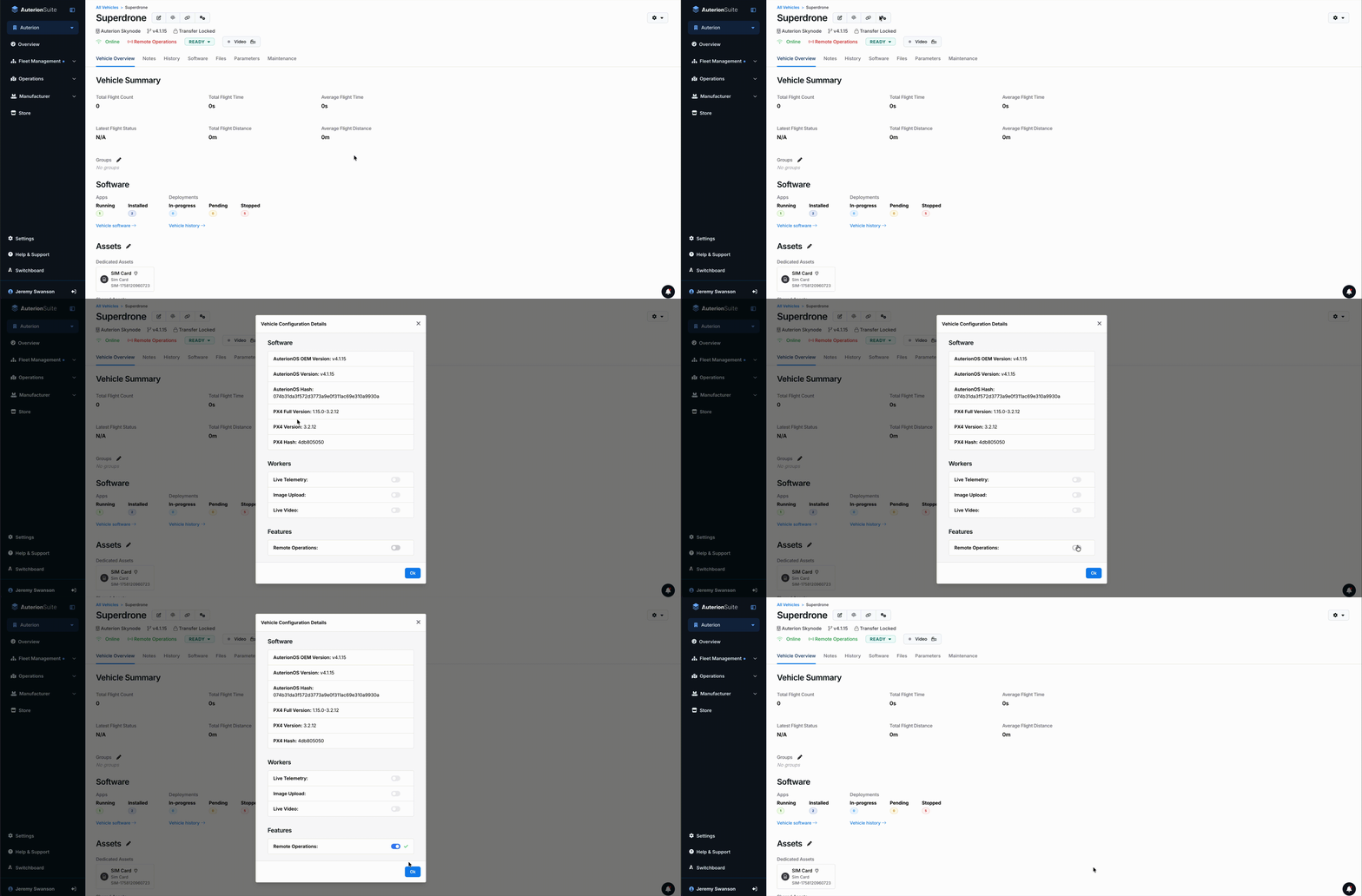
1. Open [Auterion Suite](https://suite.auterion.com) and go to your vehicle page.
2. Click the double-cog icon next to the vehicle name.
3. Scroll to the bottom and enable Remote Operations.
4. Open the Software tab and install the BeyondLine App on the drone.
5. Wait until the App is successfully deployed and confirm that the Remote Operations Indicator has turned green.
Your vehicle is now enabled to be controlled over the internet! :rocket:
### GCS Setup (Ground Control Station)
The following steps are required to enable your GCS to control your UAV via the cellular network.
{% hint style="info" %}
This feature is only available from AMC v1.38.0
{% endhint %}
1. Open AMC on your device.
2. Go to Settings → **Comm** **Links** and select the **Remote Operations tab.**
3. Click **Enable GCS**.
4. AMC will display a **unique Tailscale authorization key**.
5. Copy the key and follow the steps in the next section to register the GCS in the Tailscale app.
{% hint style="info" %}
**Tip:** Each device needs its own key, but you only do this once per device.
{% endhint %}
#### Register the GCS in the Tailscale Network
If you're using Android
1. Open the Tailscale App and Select the cogwheel icon on the sign in page.
2. Select **Accounts***.*
3. Click the three button menu on the top right and select **Use an auth key***.*
4. Paste the auth key received from AMC and select **Add Account.**
5. Your device should be shown in the list as active select your device name.
6. Under Tailscale Addresses copy the IPv4. We will need this information to complete the Registration in AMC.
If you're using MacOS
1. Open Terminal, enter following command and place your key copied from AMC at the end of it.
```
sudo tailscale up --authkey=PASTE_YOUR_KEY_HERE
```
2. Terminal may ask for your password. Enter the password for your computer.
3. Enter following command into terminal to receive the IP address:
```
tailscale ip -4
```
4. Copy the resulting IPv4 address of your device.
If you're using Windows
1. Open the Command line, enter following command and place your key copied from AMC at the end of it.
```
tailscale up --authkey
```
3. Enter:
```
tailscale ip -4
```
4. Copy the IPv4 address of your device.
If you're using Linux
1. Open Terminal, enter following command and place your key copied from AMC at the end of it.
```
sudo tailscale up --authkey=PASTE_YOUR_KEY_HERE
```
2. Enter:
```
tailscale ip -4
```
3. Copy the IPv4 address of your device.
#### Final Registration in AMC
1. Switch back to AMC.
2. Ensure Enable GCS is still on.
3. Paste this address previously copied from Tailscale into the IP Address field in AMC.
4. Click **Register device***.*
{% hint style="info" %}
If you accidentally close the registration window, you do not need to repeat the Tailscale registration. Click **Enable GCS** again to reopen the window, then paste the IPv4 address.
{% endhint %}
5. In the Remote Operations vehicle list, select **Pair**, then click **Connect** to connect the vehicle to your GCS.
{% hint style="info" %}
Pairing a vehicle links it to your current GCS, so it will **not** appear in the Remote Operations vehicle list on other ground control stations.
{% endhint %}
### Configuring Joysticks for Cellular Control
To use joystick commands over a cellular or Starlink connection, you must configure the joystick correctly on Pilot Pro or any GCS with joystick support.
**1. Enable joystick input**
1. In AMC, go to **Controller → Joystick → General**.
2. Enable **Joystick input**.
**2. Configure joystick parameters**
{% hint style="warning" %}
These parameter settings apply to AOS 4.3. For other AOS versions, check the corresponding [documentation](https://docs.px4.io/v1.16/en/advanced_config/parameter_reference#COM_RC_IN_MODE).
{% endhint %}
1. Enter **Advanced mode** by quickly clicking the **Auterion logo** in the top-left corner five times.
2. When the dialog appears, select **Switch to advanced**.
3. Open **Quick settings** by selecting the vehicle name in the top-right corner.
4. In **Quick settings**, open the **Safety** tab.
5. Locate the **Manual Control loss Failsafe Trigger** section.
1. Set **Input Source Configuration** to **MAVL 1 > MAVL 2 > RC**. This prioritizes joystick (MAVLink) control over RC.
2. Set **Manual Control loss timeout** to **1 s**. This defines how long the vehicle waits without a new RC or joystick command before it considers the control link lost.
#### Verifying LTE / Starlink Connectivity
To ensure your link is working with LTE or Starlink after having completed the setup:
**On a GCS with 2 links:**
When two links are active, the Dual Link icon is shown in the top header bar.
1. Select the **Dual Link** icon.
2. In the pop-up, select the **LTE** connection (also when using Starlink).
3. On your GCS, disable the LTE / Starlink and WiFi connection.
The Dual Link icon updates to show the new active link (in this case the Primary Radio link).
***
### Safety Notes for Operators
* Confirm **stable LTE or Starlink signal** before arming the drone, especially for BVLOS.
* Follow all applicable **local aviation regulations**.
* If latency increases, avoid low-altitude or high-precision flying.
* Keep a fail-safe procedure ready (RTH, geofence, or backup link if available).
***
### Updating from early "C2 over LTE" versions
{% hint style="warning" %}
If the vehicle has previously been used with the legacy C2 over LTE app (earlier than v0.1.0), you must perform a one-time re-authentication.
{% endhint %}
1. In a browser, go to .
2. Make sure the legacy **"C2 over LTE"** app is removed.
3. Click the cogwheel icon on the new **"BeyondLine"** app and select **Settings**.
4. Set **Force Reauth** from `false` to `true` and click **Save**.
5. The app will then re-authenticate with Auterion Suite and register automatically. In the logs this will appear similar as:
```
com.auterion.beyondline.vpn | Attempting to fetch authentication key...
com.auterion.beyondline.vpn | Successfully fetched a valid authentication key.
com.auterion.beyondline.vpn | Attempting to configure connection with provided AUTH_KEY...
com.auterion.beyondline.vpn | Connection configured successfully with AUTH_KEY.
```
5. After the registration is complete, set **Force Reauth** back to `false` and click **Save** again.


.png?alt=media&token=a122b591-2737-444f-b1a4-0a665adbd458)
.png?alt=media&token=d2bd62ae-d705-4c48-9103-d47e47c21c03)


