> For the complete documentation index, see [llms.txt](https://docs.auterion.com/llms.txt). Markdown versions of documentation pages are available by appending `.md` to page URLs; this page is available as [Markdown](https://docs.auterion.com/auterion-sign-up.md).

# Quickstart

Set up your Auterion Suite account and register your first vehicle with Auterion Mission Control.

{% stepper %}
{% step %}

### Create a Suite account

<a href="https://suite.auterion.com/login" class="button primary">Sign up</a>

To create a new company account, select **Register for an Auterion account**. If you already have an account, select **Login**.

Complete the registration details and select **Create an Organization**.

{% hint style="warning" %}
Confirm that your organization does not already have a Suite account. If you are joining an existing account, contact your administrator and ask them to [invite you to Suite](/vehicle-operation/auterion-suite-fleet-management/administration/users.md).[‌](/vehicle-operation/auterion-suite-fleet-management/administration/users.md#invite-users)
{% endhint %}

‌After registration is complete, you will receive a welcome email. Follow the activation link in the email to activate your account.
{% endstep %}

{% step %}

### Register a vehicle in Suite

{% embed url="<https://www.youtube.com/watch?v=qPoOnrwStF8>" %}
How to register a Freefly Astro in Suite
{% endembed %}

Registering your vehicle connects it to Auterion Suite. This allows you to access cloud features and manage your vehicle remotely.

1. Power on your vehicle.
2. Install Auterion Mission Control (AMC) from the Auterion store on your Ground Control Station (GCS). AMC is availible for Andriod, Windows, MacOS and&#x20;

<a href="https://suite.auterion.com/store/amc?productId=1" class="button primary">Install AMC</a>

3. Complete the AMC [Onboarding wizard](/vehicle-operation/auterion-mission-control/navigating.md#onboarding-wizard-step-by-step).
4. AMC verifies LTE internet connectivity on your vehicle. If no connection is detected, enter your Wi-Fi details when prompted.
5. Once connected, select the registration link or scan the QR code to register your vehicle in Suite.
6. Log in to your Suite account when prompted.
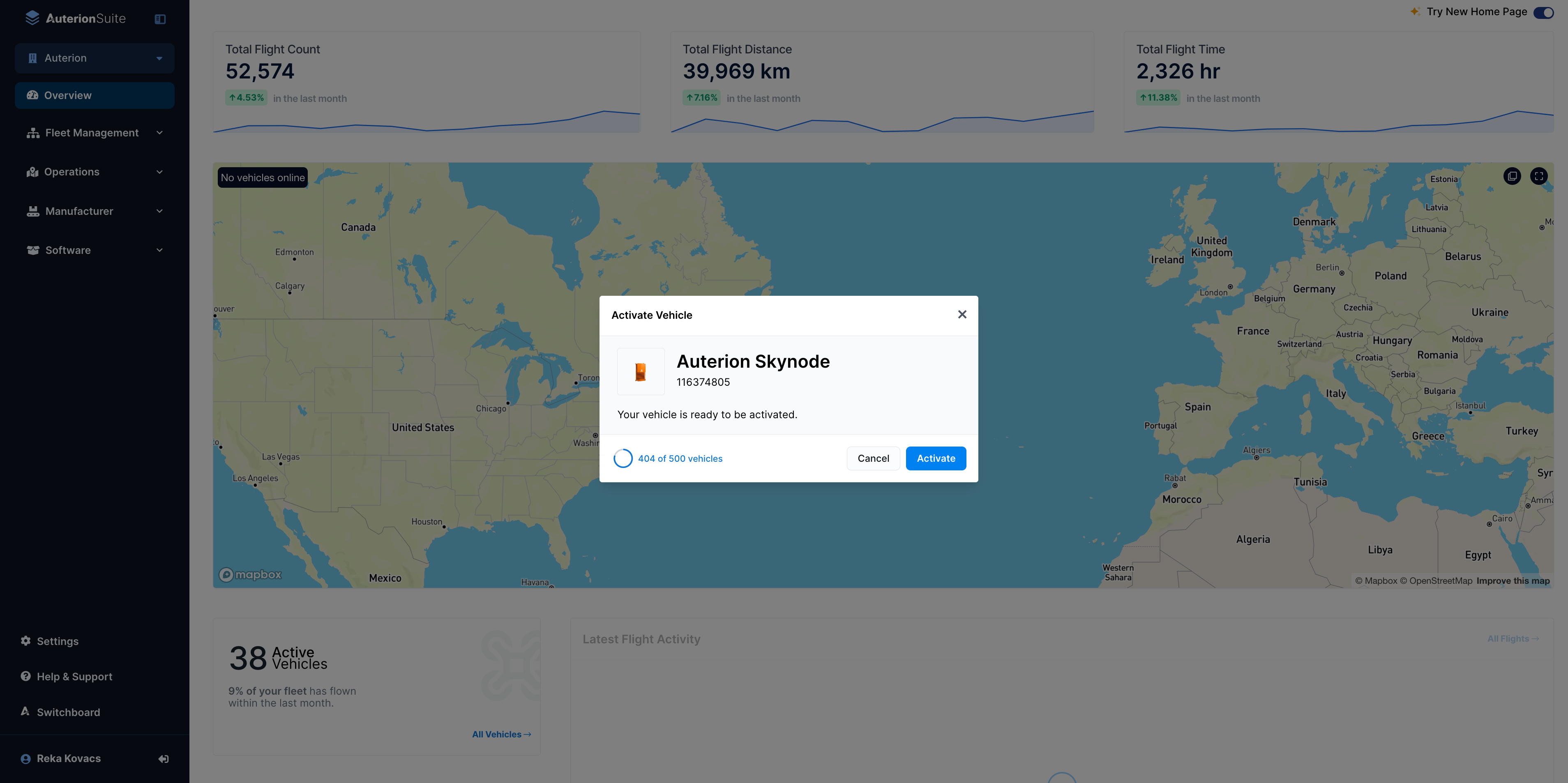
7. In the pop-up window, select **Activate** to activate your Skynode. Your vehicle will then appear under **Fleet Management** → **Vehicles**.
8. In AMC, enable the cloud features: Live Telemetry, Image Upload, and Live Video via the Onboarding wizard.

<details>

<summary><strong>Alternative Method to activate a vehicle in Suite</strong></summary>

{% hint style="info" %}
If you are starting with a **Skynode Evaluation kit**, refer to [powering your Skynode](https://docs.auterion.com/hardware-integration/skynode/evaluation-kit/powering-skynode) for steps on how to power your Skynode.
{% endhint %}

1. Power on your vehicle.
2. Connect your vehicle to your computer via USB-C.
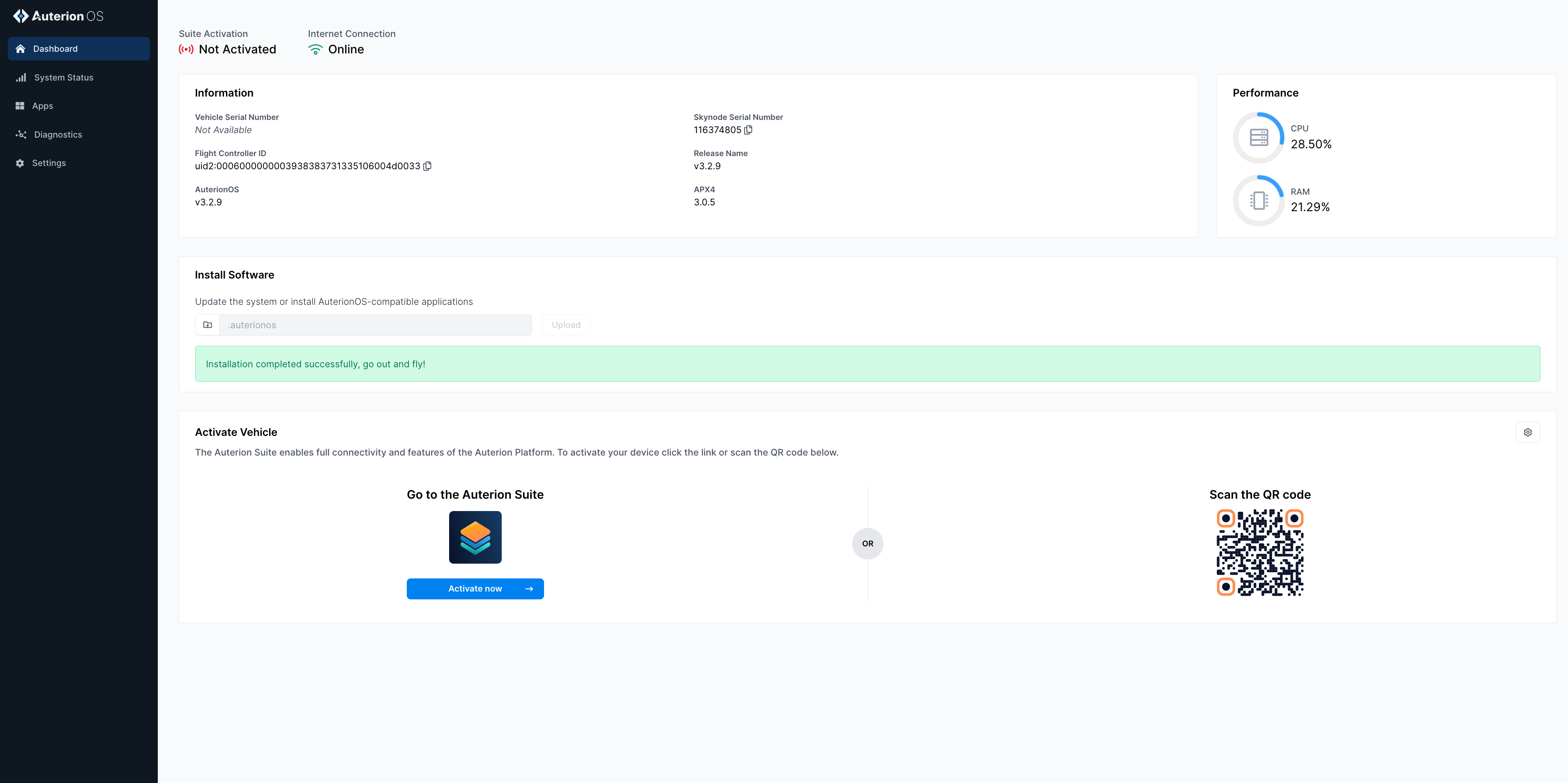
3. Navigate to the WebUI `10.41.1.1`.

<figure><img src="https://3329189600-files.gitbook.io/~/files/v0/b/gitbook-x-prod.appspot.com/o/spaces%2FFW1Ge1p1f6WHyiYCb146%2Fuploads%2Fgit-blob-94f98641422a35f385354ba1dfaff43dc6044d55%2FScreenshot%202024-07-01%20at%2014.36.32.png?alt=media" alt=""><figcaption></figcaption></figure>

4. Download and install AMC on your computer, then connect to your vehicle.
5. In AMC, navigate to the **Connectivity** tab and confirm your vehicle has an active internet connection.

<figure><img src="https://3329189600-files.gitbook.io/~/files/v0/b/gitbook-x-prod.appspot.com/o/spaces%2FFW1Ge1p1f6WHyiYCb146%2Fuploads%2FsOqdqNwL6A63LGhM9etH%2Famc%20connectivity%20status.gif?alt=media&amp;token=ccd99b0b-0536-422a-b4c1-8f76b37fb54e" alt=""><figcaption></figcaption></figure>

6. In the WebUI dashboard, select **Activate Now** or scan the QR code.
7. When Auterion Suite opens, select **Activate** in the pop-up window. Your vehicle will appear under **Fleet Management** → **Vehicles**.

<figure><img src="https://3329189600-files.gitbook.io/~/files/v0/b/gitbook-x-prod.appspot.com/o/spaces%2FFW1Ge1p1f6WHyiYCb146%2Fuploads%2Fgit-blob-4d36ea8958be8453234d0220f61b5a30b749af63%2FScreenshot%202024-07-01%20at%2014.36.48.png?alt=media" alt=""><figcaption></figcaption></figure>

</details>
{% endstep %}

{% step %}

### Next Steps

<table data-view="cards"><thead><tr><th></th><th></th><th data-hidden data-card-target data-type="content-ref"></th><th data-hidden data-card-cover data-type="image">Cover image</th></tr></thead><tbody><tr><td><h4>Collaborate </h4></td><td>Invite team members to your Suite workspace.</td><td><a href="/vehicle-operation/auterion-suite-fleet-management/administration/users.md#invite">User Management</a></td><td><a href="https://3329189600-files.gitbook.io/~/files/v0/b/gitbook-x-prod.appspot.com/o/spaces%2FFW1Ge1p1f6WHyiYCb146%2Fuploads%2FxnsZoDYHp1PoWGQBKmgU%2FGroup%2022.png?alt=media&amp;token=da5b3f88-8c5d-4041-8958-42a746752892">Group 22.png</a></td></tr><tr><td><h4>Fleet Management</h4></td><td>Explore Suites Fleet Management capabilities.</td><td><a href="/vehicle-operation/auterion-suite-fleet-management/fleet-management.md">Fleet Management</a></td><td><a href="https://3329189600-files.gitbook.io/~/files/v0/b/gitbook-x-prod.appspot.com/o/spaces%2FFW1Ge1p1f6WHyiYCb146%2Fuploads%2FyYaeHblL4q4u9ji2otE2%2FGroup%2046.png?alt=media&amp;token=623fa262-c40b-4ba9-9c68-7b30c7331564">Group 46.png</a></td></tr><tr><td><h4>Deploy Apps</h4></td><td>Learn what Apps and licenses you can deploy to your vehicle from Suite.</td><td><a href="/vehicle-operation/auterion-apps.md">Auterion Apps</a></td><td><a href="https://3329189600-files.gitbook.io/~/files/v0/b/gitbook-x-prod.appspot.com/o/spaces%2FFW1Ge1p1f6WHyiYCb146%2Fuploads%2FYLMHlW8SRc4GhCoPYObU%2FGroup%2078.png?alt=media&amp;token=601fdd0d-11e7-4917-bff0-3423fdd5b79f">Group 78.png</a></td></tr><tr><td><h4>Mission Control</h4></td><td>Explore our fully featured ground control station application.</td><td><a href="/vehicle-operation/auterion-mission-control.md">Auterion Mission Control</a></td><td data-object-fit="contain"><a href="https://3329189600-files.gitbook.io/~/files/v0/b/gitbook-x-prod.appspot.com/o/spaces%2FFW1Ge1p1f6WHyiYCb146%2Fuploads%2FDAn8gYOeofadXWHni9vF%2Fhttps___files.gitbook.com_v0_b_gitbook-x-prod.appspot.com_o_spaces%252FFW1Ge1p1f6WHyiYCb146%252Fuploads%252Fgit-blob-51ca4376d9ad1bdcb293c208e29df21439dfc555%252FAGS-Mockup-Transparent-Small%20(1).png?alt=media&amp;token=5a88b938-58af-4c9a-9400-936328888b66">https___files.gitbook.com_v0_b_gitbook-x-prod.appspot.com_o_spaces%2FFW1Ge1p1f6WHyiYCb146%2Fuploads%2Fgit-blob-51ca4376d9ad1bdcb293c208e29df21439dfc555%2FAGS-Mockup-Transparent-Small (1).png</a></td></tr><tr><td><h4>Hardware</h4></td><td>Integrate Auterion avionics into your own airframe.</td><td><a href="/hardware-integration/hardware-integration.md">Getting started</a></td><td><a href="https://3329189600-files.gitbook.io/~/files/v0/b/gitbook-x-prod.appspot.com/o/spaces%2FFW1Ge1p1f6WHyiYCb146%2Fuploads%2Fgit-blob-3d5966db7b7e1aff5de95d63c198cab508fd22da%2FX500_Skynode.png?alt=media">X500_Skynode.png</a></td></tr><tr><td><h4>Developer program</h4></td><td>Join the developer program to begin creating your own apps running on AuterionOS.</td><td><a href="/app-development/app-development.md">Getting Started</a></td><td><a href="https://3329189600-files.gitbook.io/~/files/v0/b/gitbook-x-prod.appspot.com/o/spaces%2FFW1Ge1p1f6WHyiYCb146%2Fuploads%2Fgit-blob-e1034c8d7c68eb46a0f56711304888b889df9d0b%2FDeveloper.png?alt=media">Developer.png</a></td></tr></tbody></table>

{% endstep %}
{% endstepper %}