Quickstart
Set up your Auterion Suite account and register your first vehicle with Auterion Mission Control.
Create a Suite account
To create a new company account, select Register for an Auterion account. If you already have an account, select Login.
Complete the registration details and select Create an Organization.
Confirm that your organization does not already have a Suite account. If you are joining an existing account, contact your administrator and ask them to invite you to Suite.
After registration is complete, you will receive a welcome email. Follow the activation link in the email to activate your account.
Register a vehicle in Suite
Registering your vehicle connects it to Auterion Suite. This allows you to access cloud features and manage your vehicle remotely.
Power on your vehicle.
Install Auterion Mission Control (AMC) from the Auterion store on your Ground Control Station (GCS). AMC is availible for Andriod, Windows, MacOS and
Complete the AMC Onboarding wizard.
AMC verifies LTE internet connectivity on your vehicle. If no connection is detected, enter your Wi-Fi details when prompted.
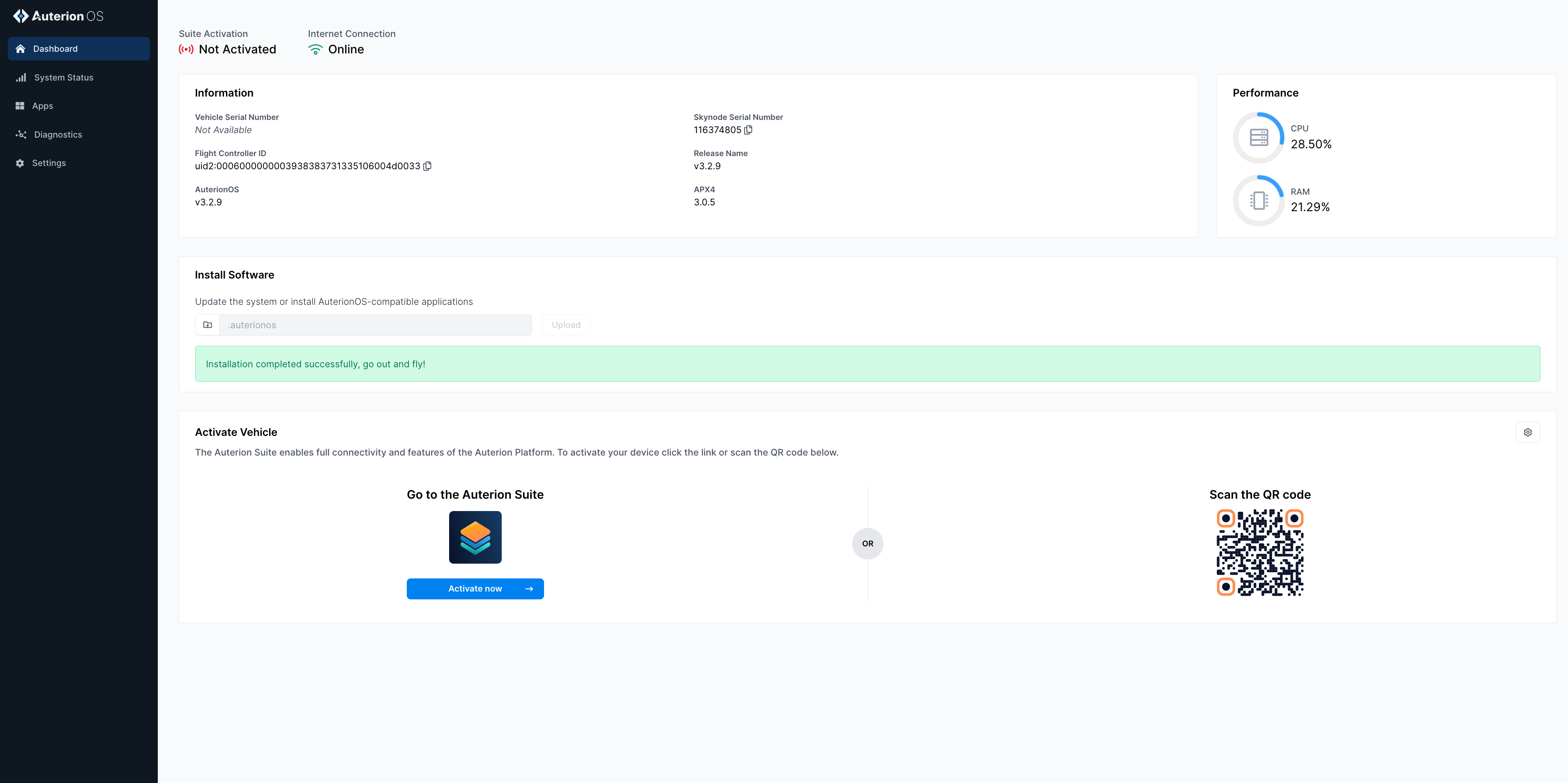
Once connected, select the registration link or scan the QR code to register your vehicle in Suite.
Log in to your Suite account when prompted.
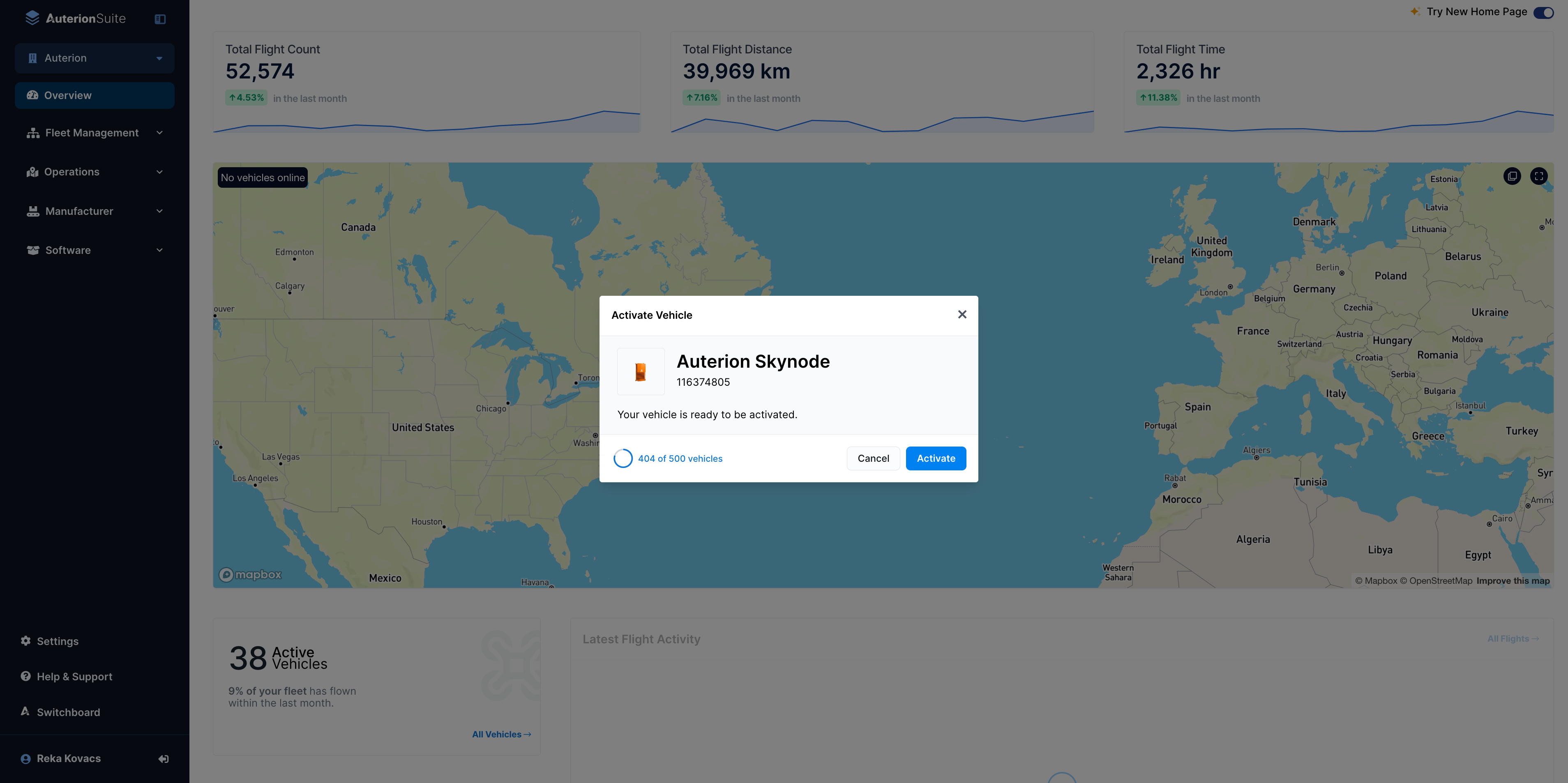
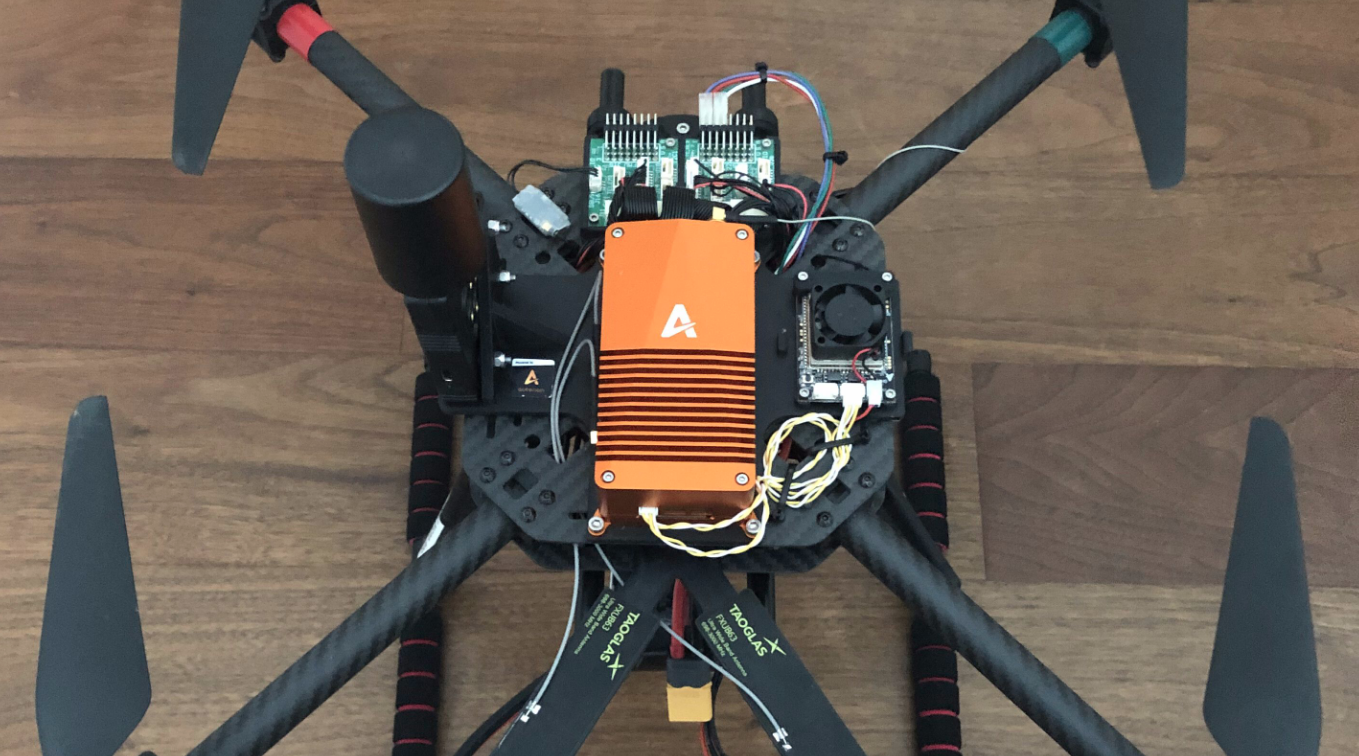
In the pop-up window, select Activate to activate your Skynode. Your vehicle will then appear under Fleet Management → Vehicles.
In AMC, enable the cloud features: Live Telemetry, Image Upload, and Live Video via the Onboarding wizard.
Last updated